19 November 2026
A Day on the Shop Floor With ChatGPT and Standard Time®
Your team may already use ChatGPT every day. You do not have to switch assistants to get answers from your shop-floor data. Connect ChatGPT to your Standard Time® account, and it can answer questions from your live records and, with your approval, update your tasks. Here is one made-up production day, from the first question to the last undo.
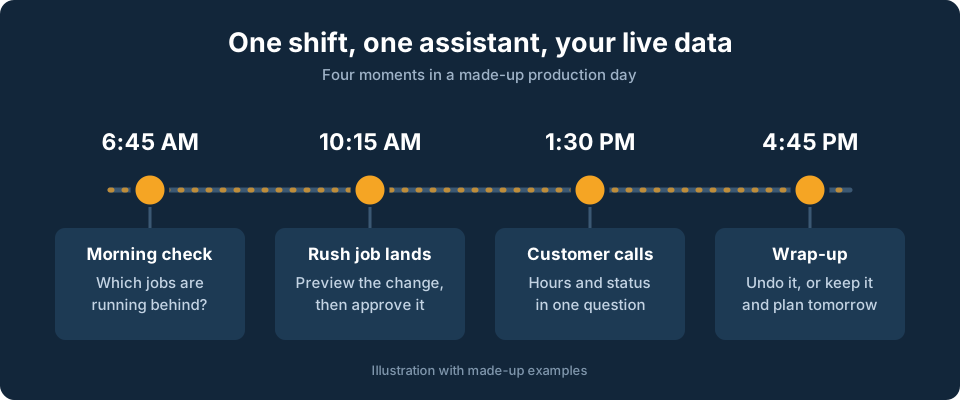
Four moments, one assistant. (Illustration with made-up examples.)
Keep the Assistant You Already Use
Standard Time® works with ChatGPT the same way it works with Claude: the connection signs in as you, sees what your rights allow, and asks before it changes anything. There is nothing new for the shop floor to learn, and no second set of screens to maintain.
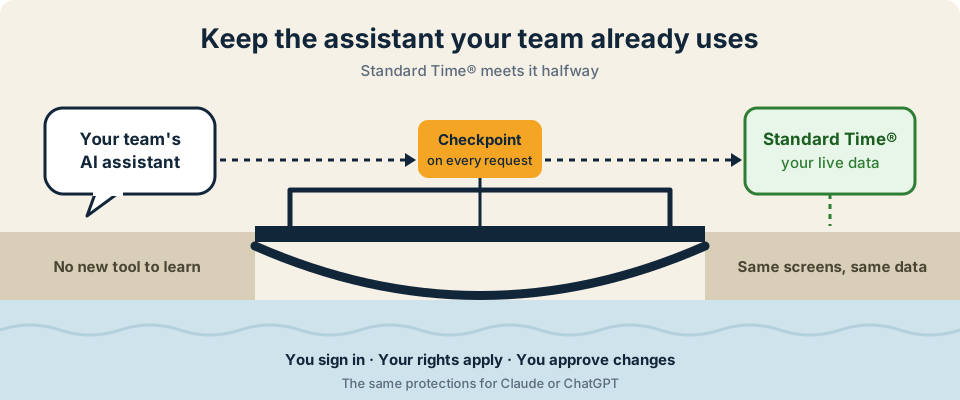
Standard Time® meets your assistant halfway, with a checkpoint on every request.
Before the First Shift Starts
A production manager wants to know where the day will go wrong, before anyone is on the floor.
- ChatGPT read your tasks as they are right now, not from an old export.
- It saw only the jobs you are allowed to see. Anything outside your rights stays out of the answer.
A Rush Job Lands
A customer needs parts sooner. The schedule has to bend, and it has to bend correctly.
- A change is always a two-step trip: a preview that changes nothing, then a separate apply.
- The preview lists up to 25 rows, and a single request can create up to 25 new tasks. Bigger schedules take several rounds.
- Adding tasks needs the right to create project tasks. A new project needs an administrator.
- In our testing, ChatGPT's own permission setting also stopped to ask before applying, which gives you a second checkpoint.
The Customer Calls
The same customer wants a status update. Nobody has to dig for it.
- When the connection was made, an administrator could have chosen to hide cost and rate fields, or to show “User 1” and “User 2” in place of real names. A question the connection cannot see simply cannot be answered.
- Those choices are fixed when the connection is made. To change them, disconnect and reconnect.
Changed Your Mind?
The rush order is cancelled. The change from this morning needs to come back out.
- Undo removes what the change created and restores what it edited, for 30 minutes after it was applied.
- Anything already sent out by a webhook or Zapier automation cannot be recalled, so plan around that if you use them.
- After the window closes, you can still correct tasks by hand or ask for a new change.
Six Gates Between a Question and a Change
The day above only works because every request passes through the same checks. Reading passes the first three. Changing a task passes all six.
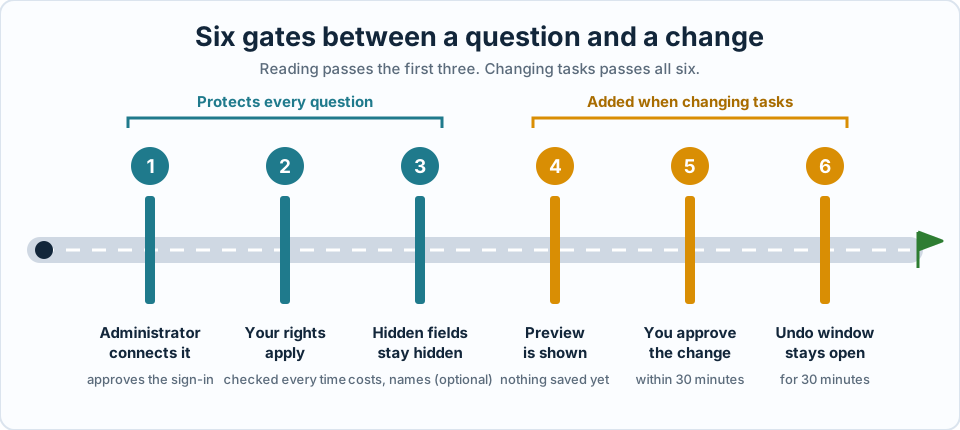
Three gates protect every question. Three more guard every change.
What It Can and Cannot Touch
ChatGPT can look up a lot, but it can change only a small, deliberate set of things, and always after your approval.
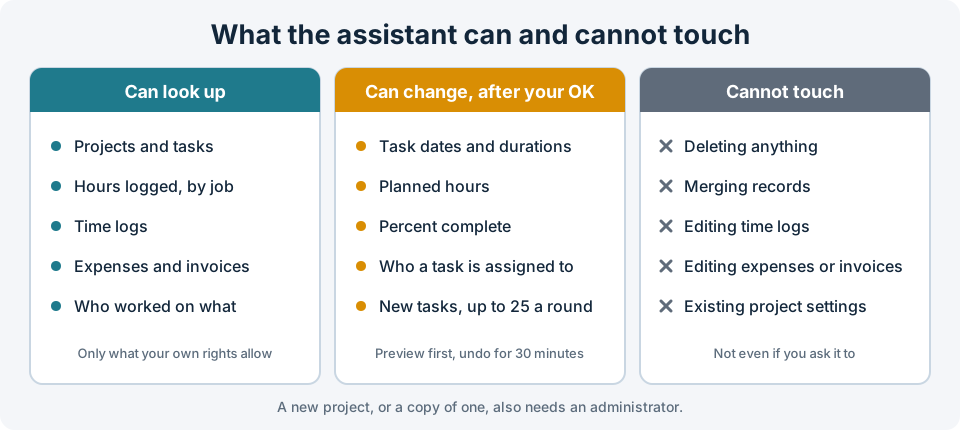
Changes reach project tasks only. Time logs, expenses, and invoices are read-only.
An honest note: an assistant can misunderstand a request. That is the reason the preview exists. Read it before you approve, especially the dates and the number of rows.
Claude or ChatGPT: What Is the Same, What Is Not
Standard Time® behaves identically for both assistants. The differences are on the assistant's side, in its own menus and plans.
| Topic | Claude and ChatGPT |
|---|---|
| Rights | Acts as the signed-in user, with that user's rights, checked on every request. |
| Preview, approve, undo | Same steps, same 30-minute proposal window and 30-minute undo window. |
| Who connects it | By default an administrator approves the sign-in, and the person needs the Access to AI right. |
| Limits | Same 25-row limits and the same task-only changes. |
| Where they differ | The assistant's own menus, labels, and which plans allow custom connections. Those belong to Anthropic and OpenAI, so check their current help pages. |
Check That It Works
Before you rely on it, run the short smoke test. It takes about 10 minutes and proves the connection is live, that ChatGPT finds Standard Time®, that its answers match your own grids, and that a throwaway project can be previewed, applied, and undone.
Smoke-Test Your ChatGPT Connection walks through each check.
Good to Know
- Cloud only. The connection is available for Standard Time® cloud accounts, not on-premise installs.
- Set up by an administrator. By default only an administrator can approve the sign-in.
- ChatGPT availability. Whether your ChatGPT plan or workspace allows custom connections is decided by OpenAI and can change. Check OpenAI's Help Center before you plan around it.
- ChatGPT is separate. ChatGPT is a product of OpenAI with its own account, plans, and menus. Standard Time® is not made by or affiliated with OpenAI, and ChatGPT's screens may change over time.
Getting Started
- Open the full setup guide: Connect ChatGPT to Standard Time® (MCP Server).
- Connect ChatGPT as an administrator, choosing what to hide.
- Start a message with “With Standard Time, …” and ask your first question.
- Run the smoke test before you rely on it.