Acts as you
Your login, your rights. ChatGPT never sees more than you do.
Preview first
Every change is shown before it is saved, and you approve it.
30-minute undo
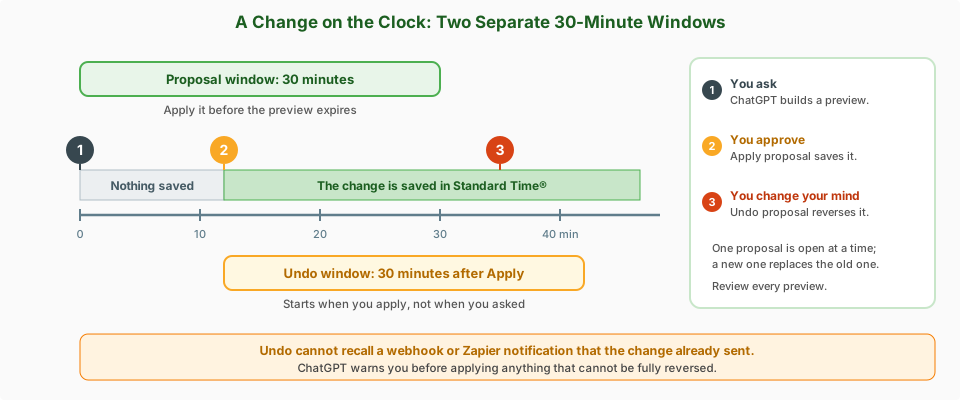
Changed your mind? Undo works for 30 minutes after applying.
Cut it off anytime
Revoke the connection in Standard Time® and access ends at once.
How ChatGPT Reaches Your Standard Time® Data
MCP (Model Context Protocol; see also the glossary) is an open standard that lets an AI assistant connect to outside tools and data. The MCP Server in Standard Time® is a secure doorway built on that standard. ChatGPT calls these doorways custom MCP servers and installs each one as a plugin.
You connect once. After that, ChatGPT can look things up in Standard Time® whenever you ask, using the same doorway, the same rights checks, and the same safety rules that apply to Claude.
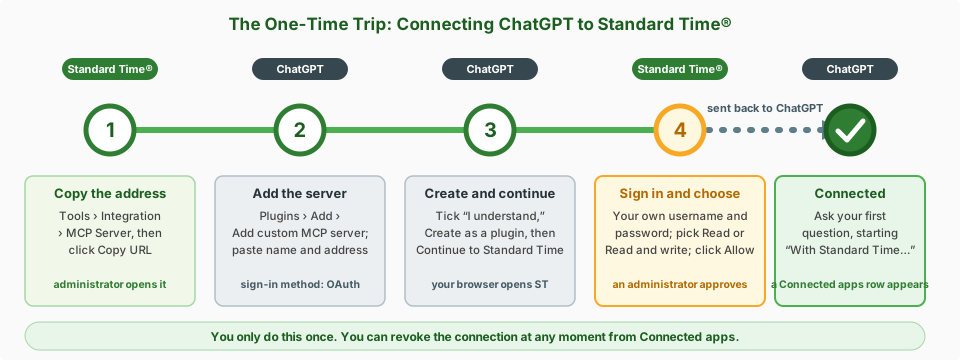
Which AI feature do I want?
| ChatGPT or Claude (MCP Server) | AI Chat | AI Providers | |
|---|---|---|---|
| What it is | Your own assistant app reaches into Standard Time®. | A chat panel inside Standard Time® that calls an AI model for you. | The setup that connects Standard Time® to an AI model such as OpenAI, Anthropic, or Google Gemini. |
| Where you work | In ChatGPT (or Claude). | Inside Standard Time®. | In Standard Time® settings, set up once by an administrator. |
| Whose AI account | Your own ChatGPT account. | The model an administrator assigns to you. | The provider accounts and keys your organization chooses. |
| Learn more | This page, or the Claude version. | How to Use AI Chat | AI Providers guide |
What Can I Ask ChatGPT?
Ask the way you would ask a coworker. ChatGPT finds the records, asks Standard Time® to do the arithmetic, and tells you the answer.
Changes, with your approval
ChatGPT can propose edits to project tasks and show you exactly what would change before anything is saved. It can work on:
- Progress and status: percent complete and completed
- Schedule: dates, planned hours, and the order of tasks
- Links between tasks: predecessors and successors
- Details: billable flag, category, subproject, assignments, and description
- New work: create new tasks and projects, or copy a project or subproject, when you allow it (up to 25 new tasks per proposal)
What it does not do
- It does not change time logs, expenses, or invoices, and it cannot edit an existing project's own settings.
- It never deletes or merges records.
- It does not export files or send e-mail on its own.
Before You Start
| You need | Details |
|---|---|
| A Standard Time® cloud account | The MCP Server is part of the Standard Time® cloud service. On-premise installs are not supported. |
| The “Access to AI” right | The person who connects needs the same Access to AI right that AI Chat uses. An administrator sets rights in Users and Organization. |
| An administrator login (for sign-in) | By default, only an administrator can approve a connection when ChatGPT asks you to sign in. If you are not an administrator, ask one to connect. |
| A ChatGPT account that can add custom MCP servers | Custom MCP servers are a ChatGPT feature. Check OpenAI's Help Center for current plan and workspace details. In a team or business workspace, an owner may need to allow custom servers first. |
| Your connector address | The MCP Server dialog shows the Connector URL for your account. You copy it into ChatGPT in a moment. |
Connect ChatGPT, Step by Step
You sign in with your own Standard Time® login. There is no key to copy and no client ID or secret to type. Green steps happen in Standard Time®; gray steps happen in ChatGPT.
-
Standard Time® Copy the connector address
Open the Tools ribbon, click the Integration dropdown, and choose MCP Server. In the dialog, click Copy URL next to the Connector URL.
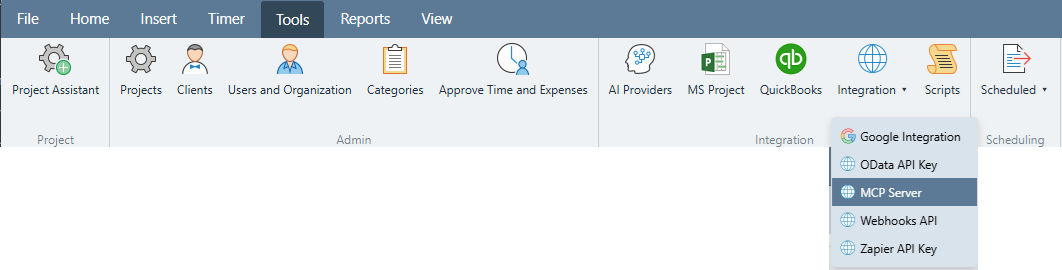
Tools ribbon › Integration › MCP Server. 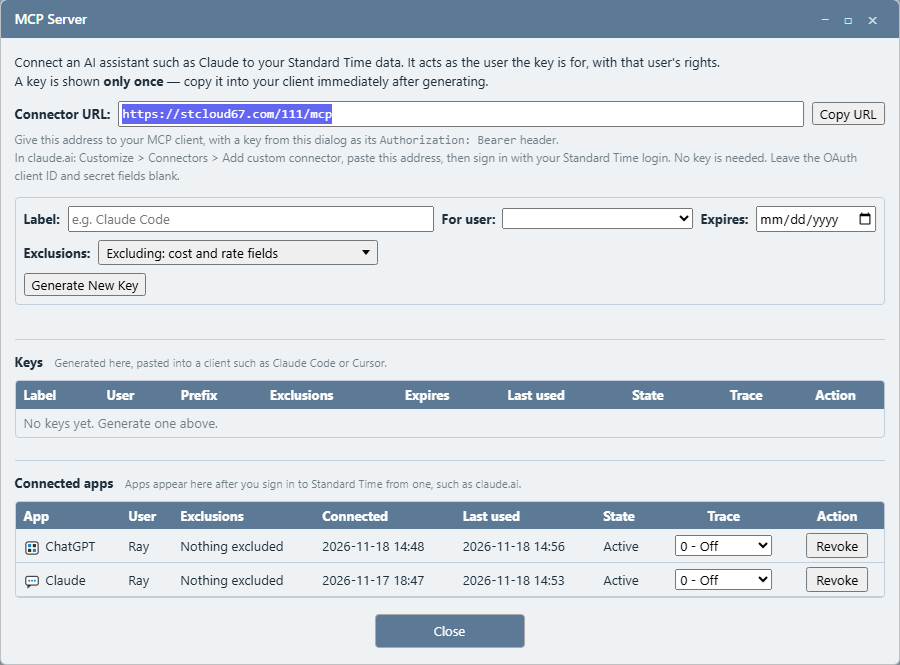
The MCP Server dialog. Your Connector URL is at the top; Connected apps at the bottom lists ChatGPT here once it is connected (this account has also connected Claude). -
ChatGPT Add a custom MCP server
In ChatGPT, click Plugins in the left sidebar, then Add, then Add custom MCP server. (OpenAI occasionally renames menus. If you do not see these labels, look for where ChatGPT lets you add a custom MCP server.)
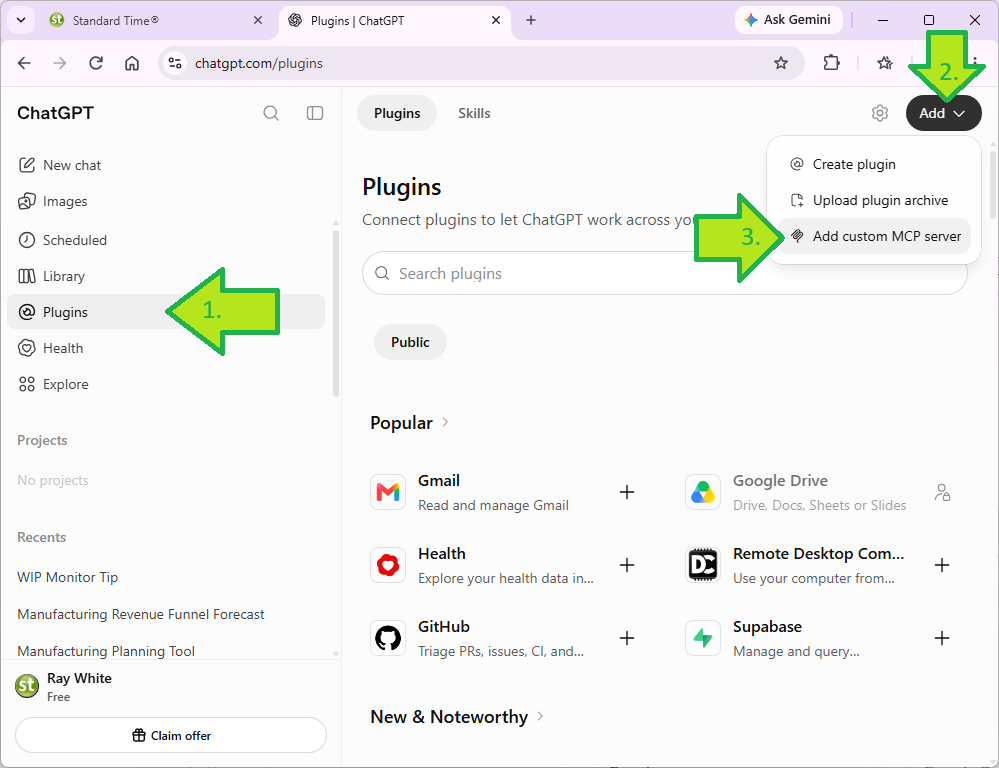
1. Plugins 2. Add 3. Add custom MCP server. -
ChatGPT Name it, paste the address, keep OAuth
Fill in the dialog:
- Name: a label you will recognize, such as Standard Time.
- Description (optional): for example, Query and update Standard Time projects.
- Connection: leave it on Server URL and paste the Connector URL you copied.
- Authentication: leave it on OAuth, so each person signs in with their own Standard Time® login.
- Advanced OAuth settings: leave them alone. You do not need a client ID or secret.
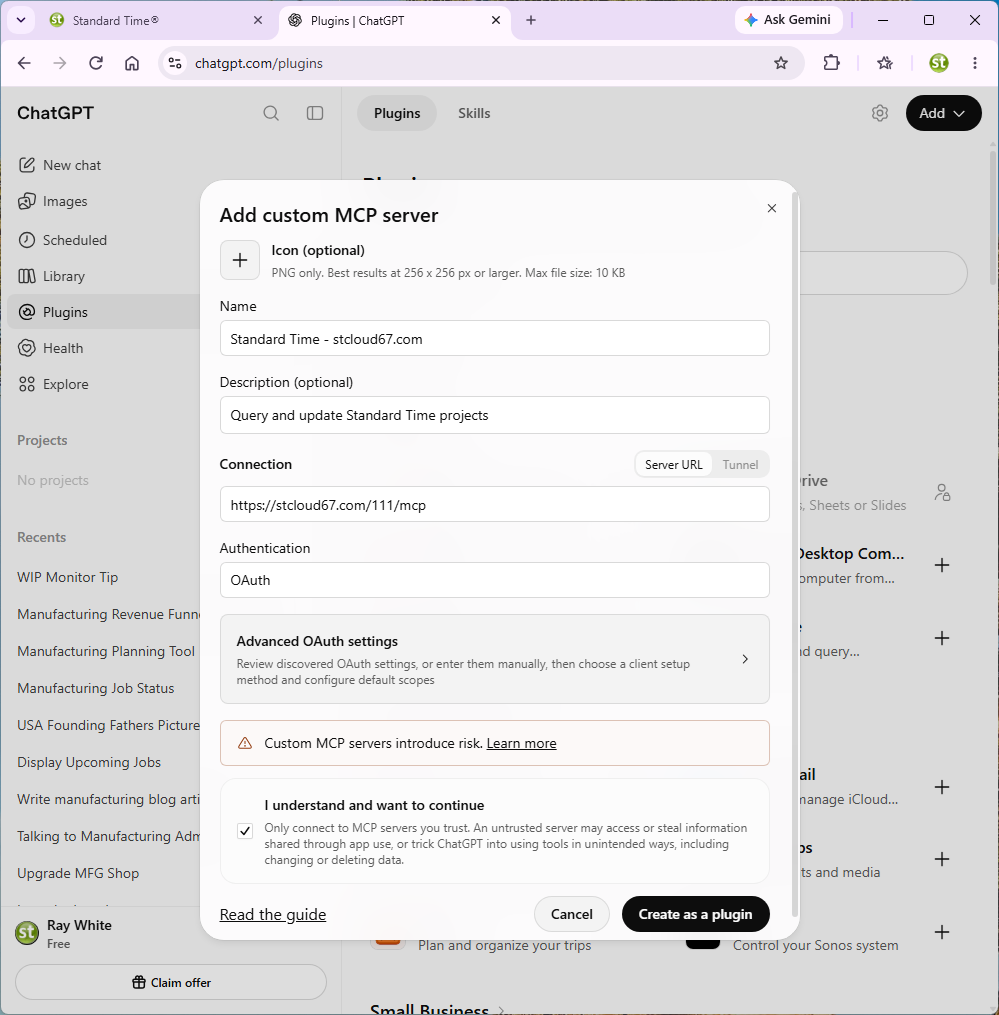
The name and description are only labels in your own plugin list. The address must be the exact Connector URL from Standard Time®. -
ChatGPT Confirm, create, and continue
ChatGPT shows a red notice that custom MCP servers introduce risk. That notice appears for every custom server, and the advice is to connect only to servers you trust. The address here is your own Standard Time® account. Tick I understand and want to continue, click Create as a plugin, then click Continue to Standard Time.
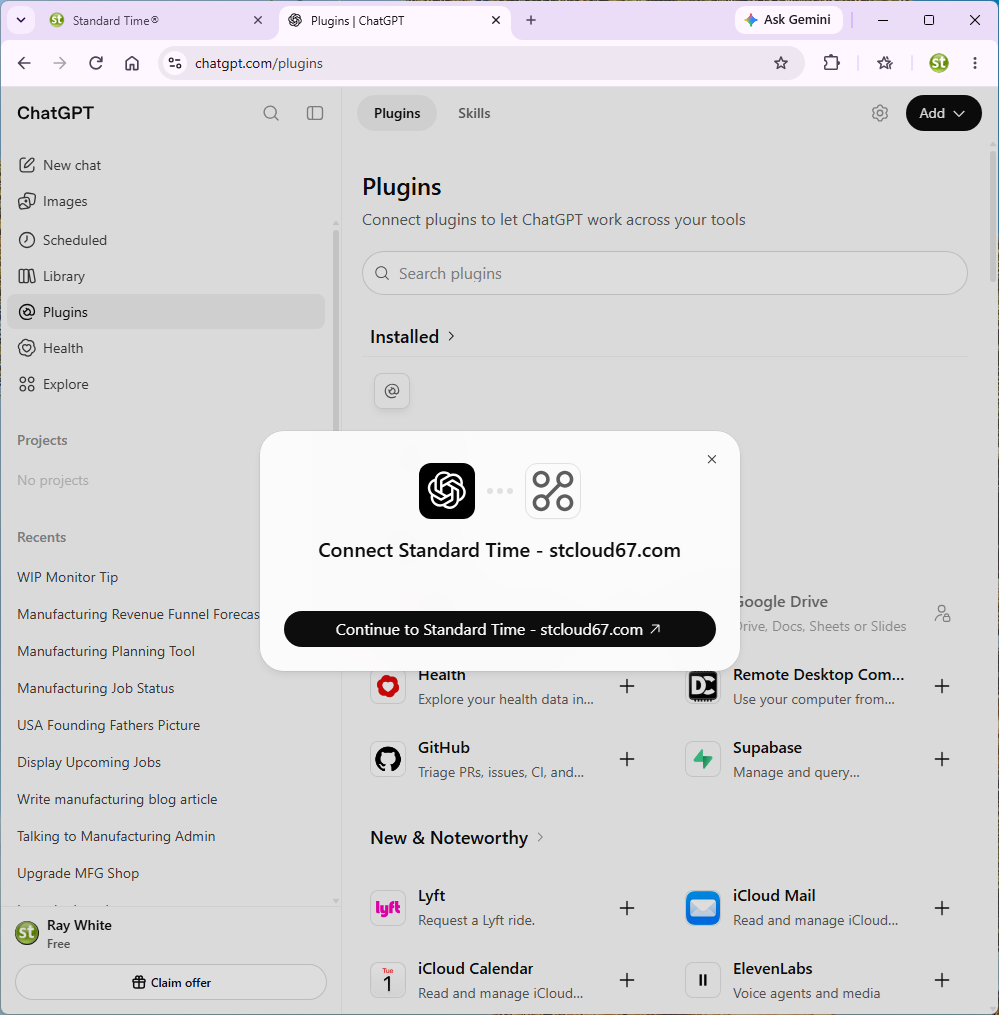
Clicking Continue to Standard Time opens a Standard Time® page in your browser. -
Standard Time® Sign in and choose what ChatGPT may do
Your browser shows a Standard Time® page titled Connect an app to Standard Time. It names ChatGPT as the app asking. Enter your Standard Time® username and password, choose what ChatGPT may do, and click Allow. If you sign in as an administrator, a yellow note reminds you that the connection gets an administrator's visibility.
Choice What it does Read ChatGPT can look things up but can never propose a change. Read and write ChatGPT can look things up and propose changes to tasks. Nothing is saved until you approve it. Hide cost and rate fields Client and salary costs and rates are withheld from ChatGPT, even if your own rights allow you to see them. A good choice unless you want ChatGPT to answer cost questions. Hide user names ChatGPT sees stand-ins such as “User 1” instead of real employee names. Allow it to create and copy projects and tasks Lets ChatGPT propose brand-new tasks and projects and copies of existing ones. Needs Read and write. You still approve each proposal. These choices are fixed for that connection. To change them later, disconnect and connect again (see Disconnecting and Revoking).
-
ChatGPT Confirm it is connected
You land back in ChatGPT. Open Settings › Plugins and click the Standard Time plugin: under Connected accounts you should see your account marked Primary, and the About list shows the address and Authorization used: OAuth. A matching ChatGPT row also appears under Connected apps in the Standard Time® MCP Server dialog.
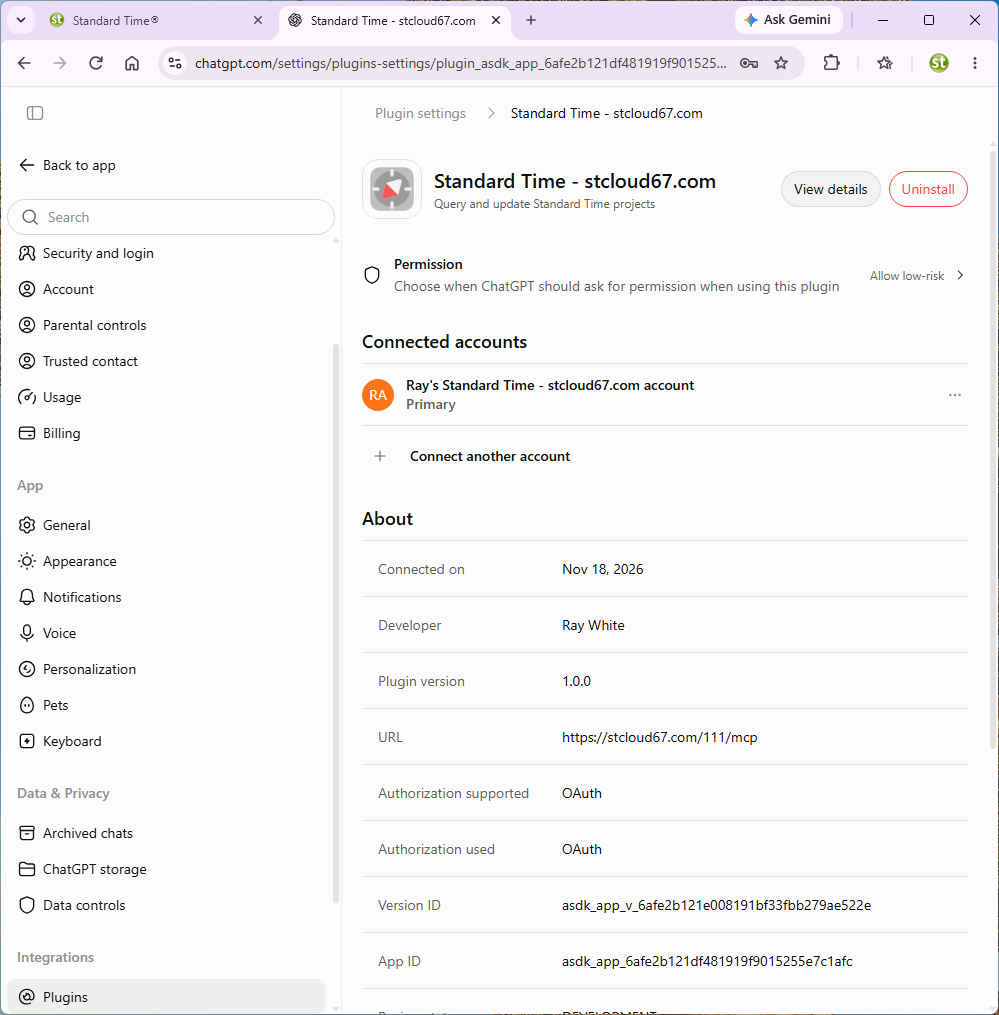
The plugin page in ChatGPT: a connected account, the address, and Authorization used: OAuth. The Uninstall button is at the top right. Want to be sure it works? The ChatGPT smoke test is a 10-minute checklist: confirm the connection, ask three questions you can verify, then preview, apply, and undo a throwaway project.Staying signed in. ChatGPT keeps the connection alive in the background. If you do not use it for about 30 days, or after roughly six months in all, ChatGPT asks you to sign in to Standard Time® again. If you revoke the connection, ChatGPT loses access immediately.
Ask Your First Question
Open a new chat and start your question with With Standard Time. In testing, that was enough for ChatGPT to find the connection and use it; there was no switch to turn on.
If you want to be certain ChatGPT uses Standard Time®, attach it yourself: click the + button in the message box and choose Standard Time. A blue Standard Time chip appears in the box, and the next message goes out with the plugin attached.
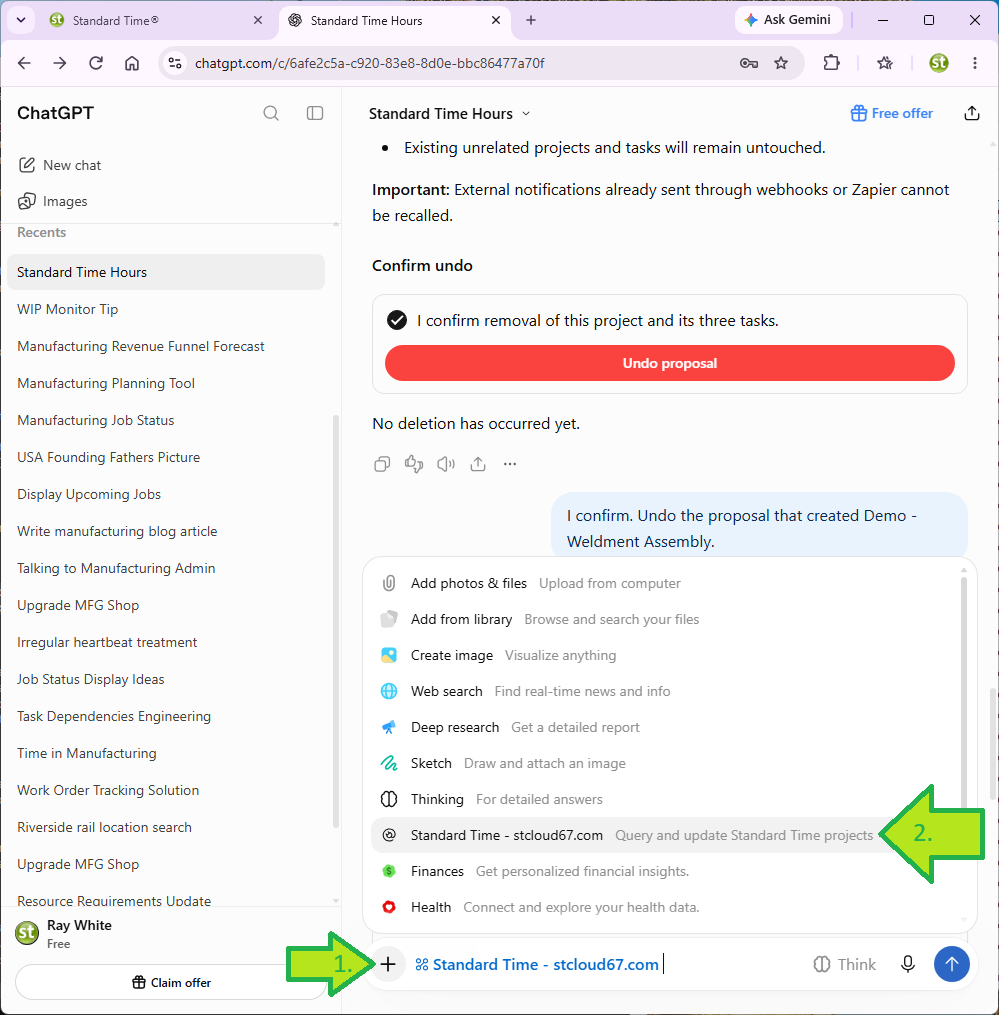
ChatGPT then looks up the data and answers, labeling the reply Standard Time data retrieved. Totals come from Standard Time®, not from ChatGPT's own arithmetic.
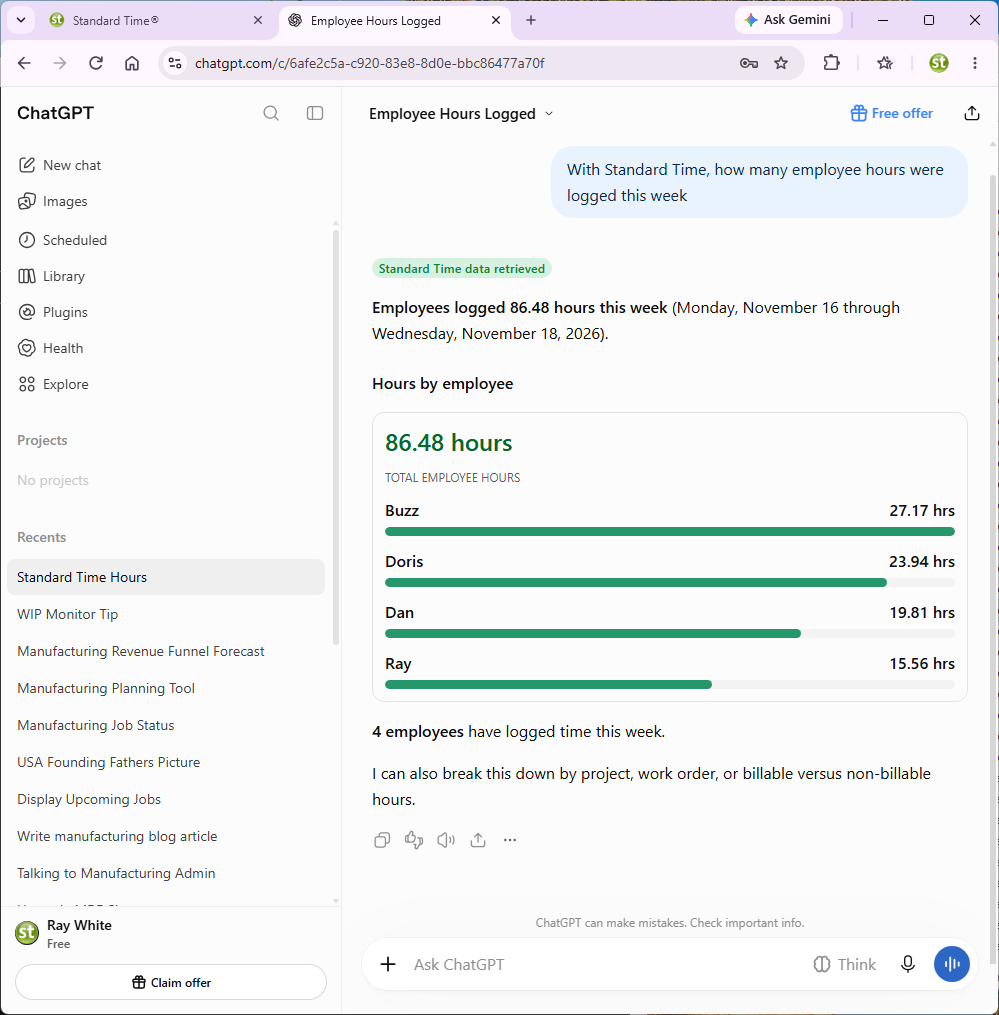
Follow-ups work the way you would expect: “Break it down by project,” or “Draw a bar chart of hours per day this month.”
Changing Tasks: Preview, Approve, Apply, Undo
Reading is harmless, but changing your schedule is not. So every change runs on the clock below, and nothing is written until you approve the apply.
A worked example
Here ChatGPT is asked to set up a small project with three linked tasks:
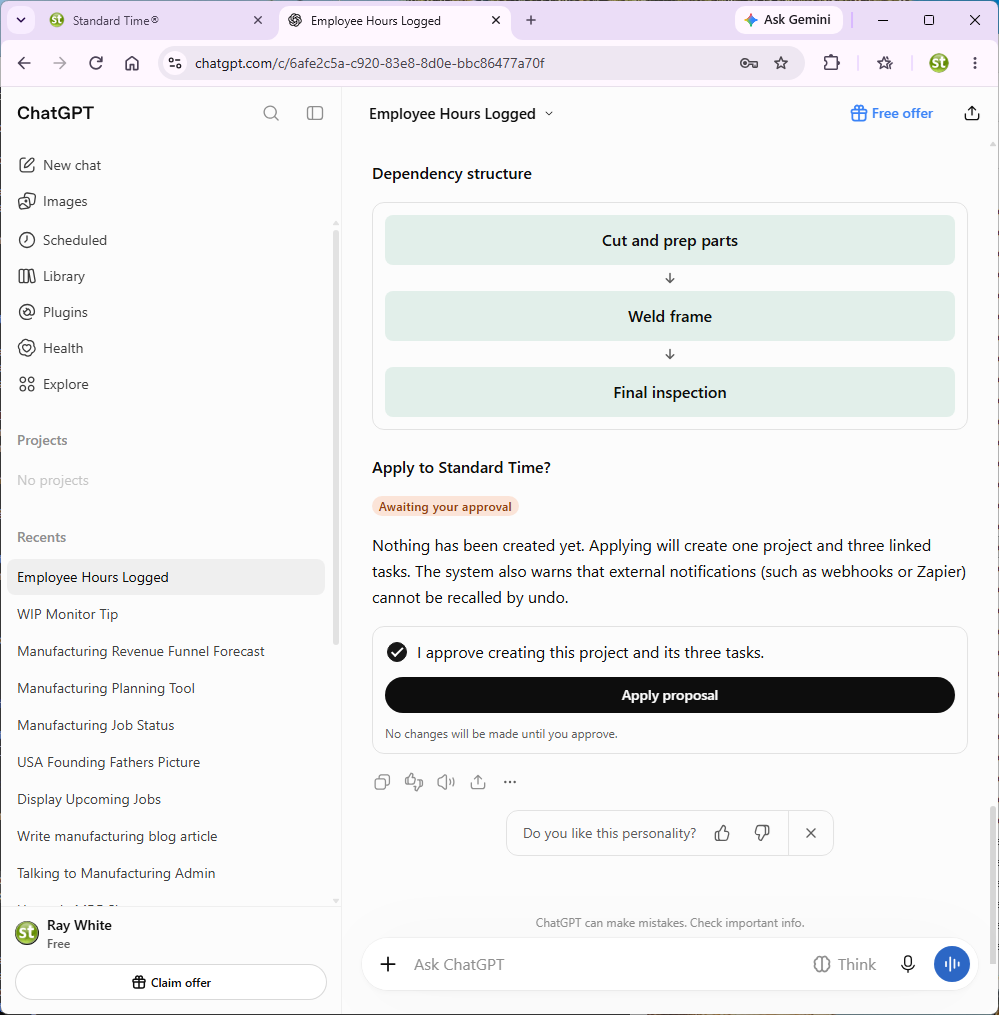
1. ChatGPT builds a preview and waits
ChatGPT draws what it plans to create. Here it also showed the order of the tasks. It then says Awaiting your approval and “Nothing has been created yet.” A proposal writes nothing; it only checks the request and builds the preview. Read it carefully.
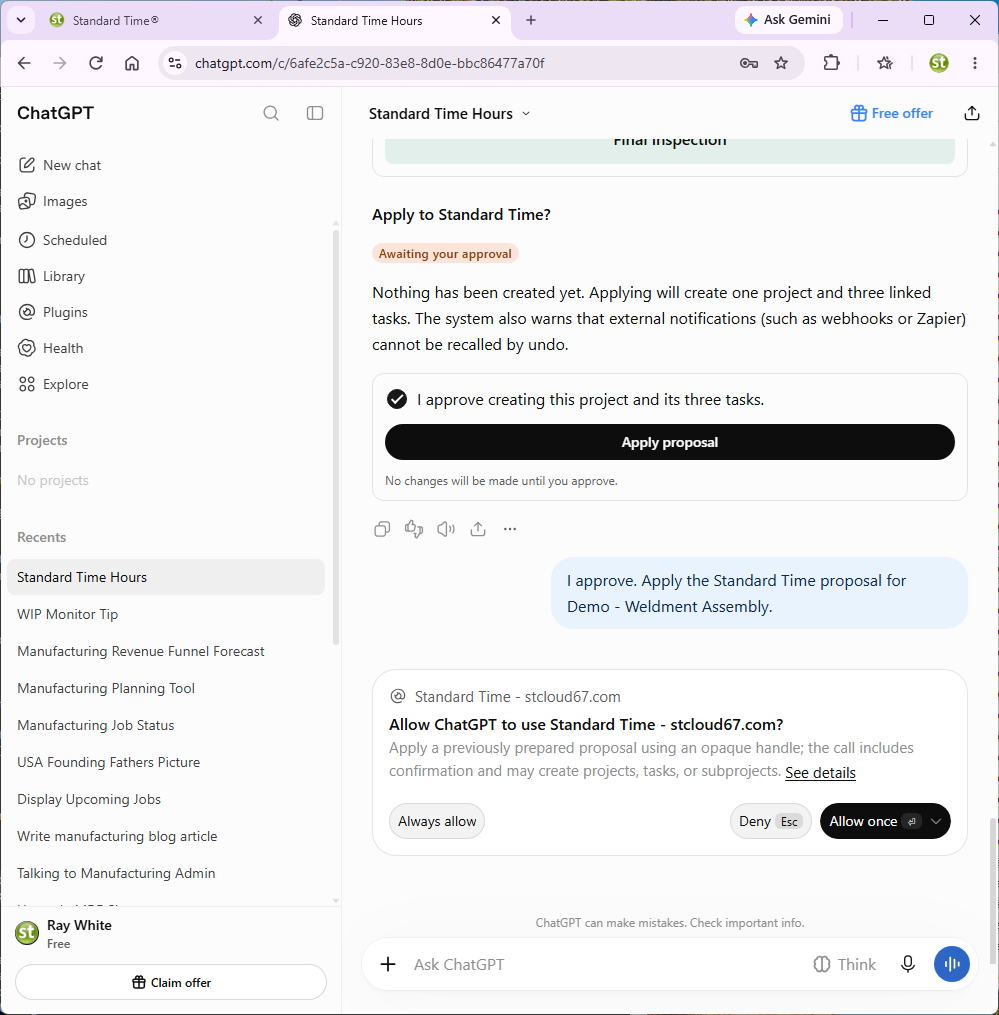
2. You approve, and ChatGPT asks once more
Tick the approval box and click Apply proposal, or just tell ChatGPT to apply it. ChatGPT then pauses with its own permission prompt asking to use Standard Time to apply the proposal. Click Allow once. (Always allow skips this stop in future; see ChatGPT's Permission Settings.)
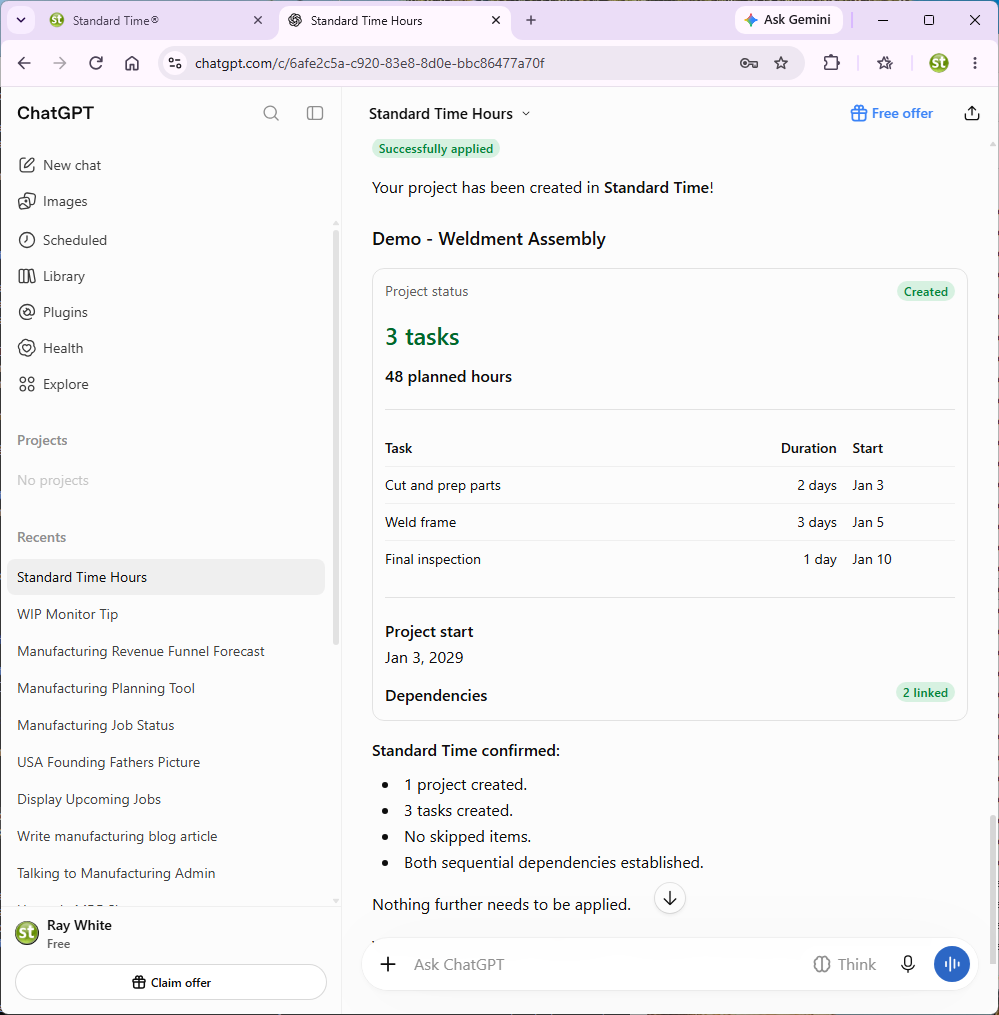
3. The change is applied
ChatGPT reports Successfully applied, with a summary of the project, its tasks, planned hours, and links, and says what Standard Time® confirmed.
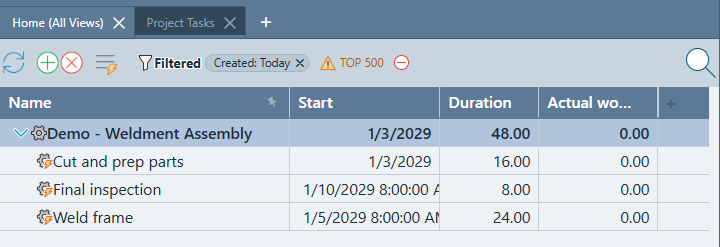
The project now exists in Standard Time®, and everyone with access sees it like any other record.
4. Undo, if you change your mind
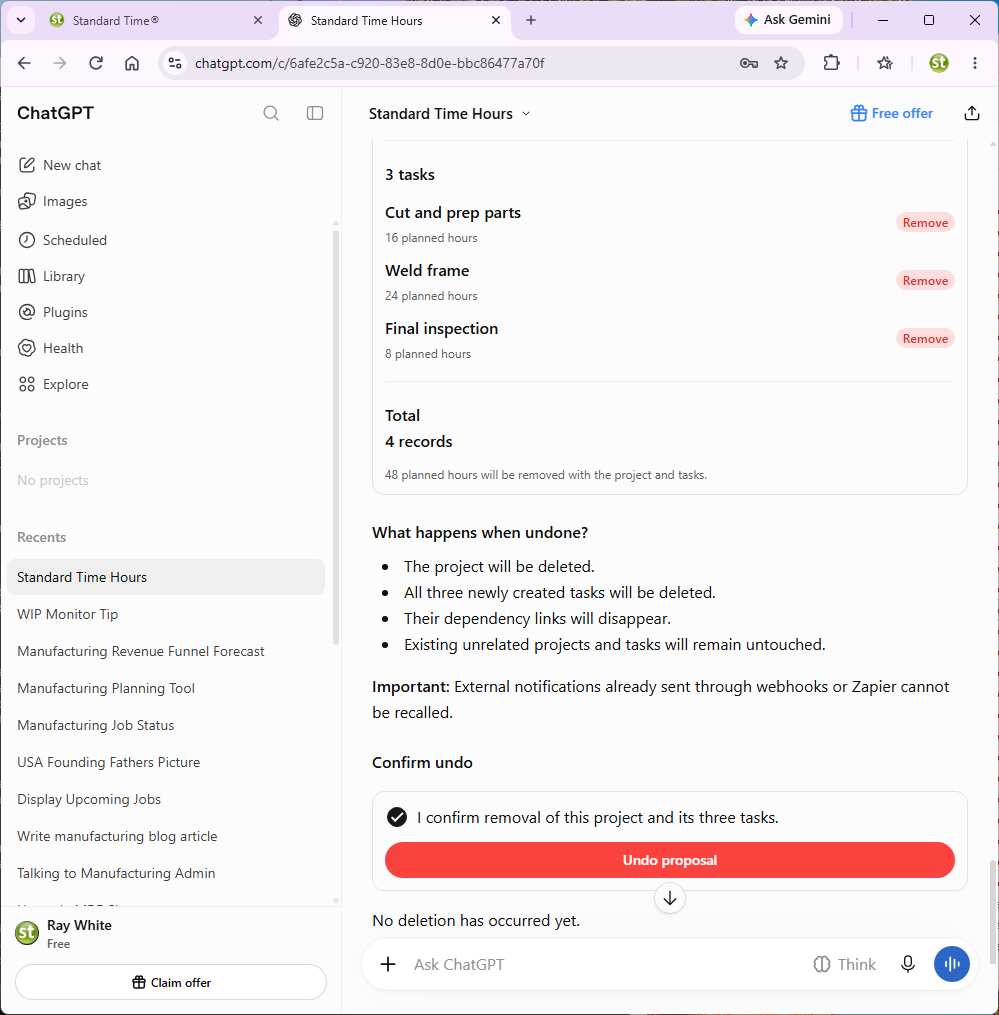
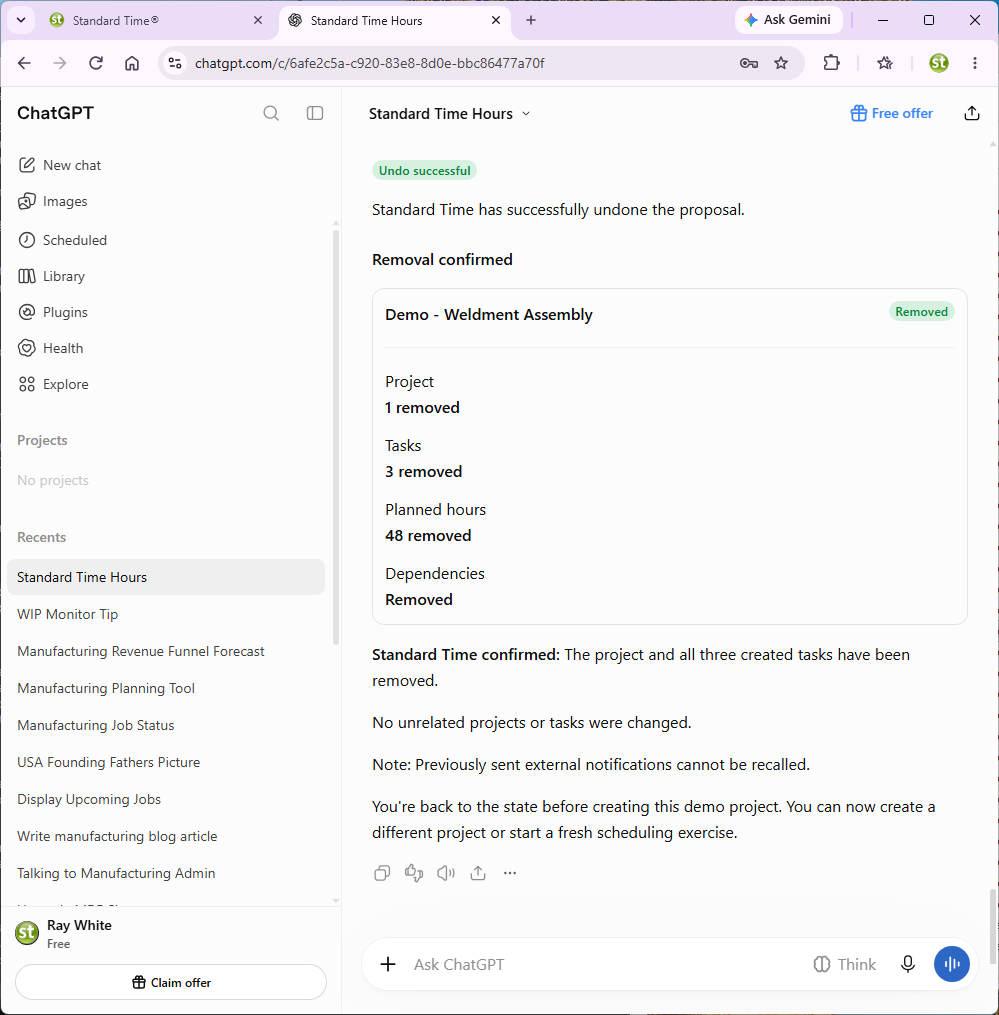
Say “Undo that last change.” ChatGPT shows what undoing would remove, including the project, each task, and the links between them, and says “No deletion has occurred yet.” Tick the confirmation and click Undo proposal.
Good to know
- One proposal at a time. A new proposal replaces the one that is open.
- A proposal lasts 30 minutes. If it has expired, or you were disconnected, ChatGPT tells you the proposal is no longer available. Ask it to propose again.
- Big previews are summarized. The preview lists up to 25 changed rows. If more would change, you are told how many are not listed.
- Large schedules take rounds. A proposal can add up to 25 new tasks. For 60 tasks, ChatGPT builds the project with the first 25, then attaches the next batches to it, asking for your approval each time.
- Your rights still apply. Adding tasks to an existing project needs the Can create new project tasks right. Starting a new project, or copying a whole project, needs an administrator who has Administer projects, clients, etc.
- Projects can opt out. A project whose AI-updates setting is turned off is skipped, and ChatGPT tells you which rows it could not change.
- Review every preview. ChatGPT can make mistakes. The preview is your chance to catch them.
ChatGPT's Permission Settings
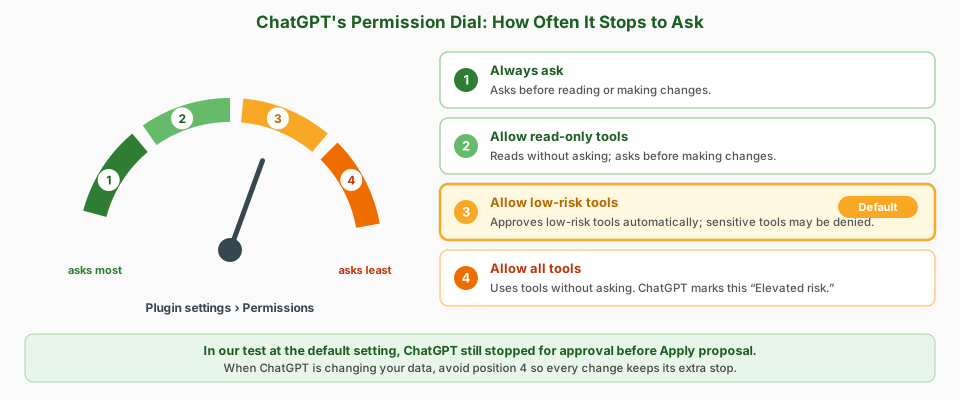
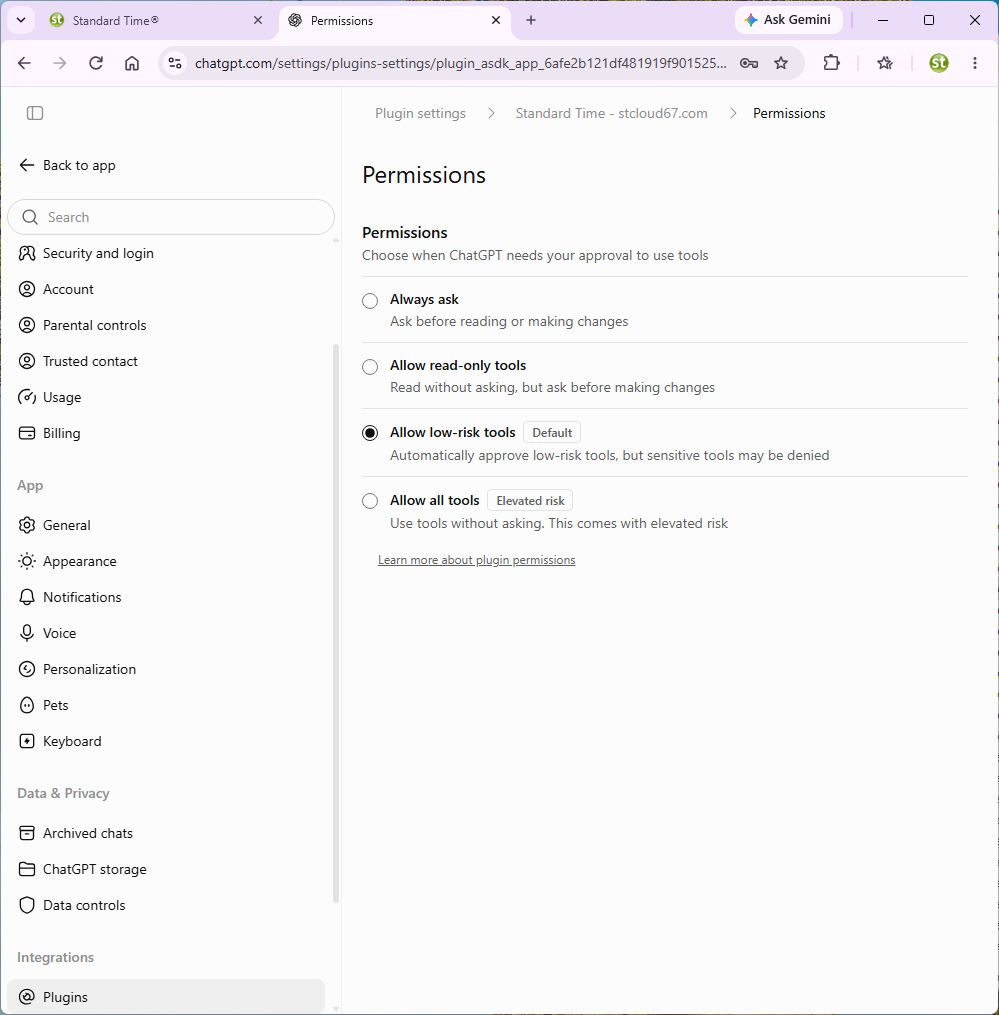
ChatGPT decides when to stop and ask before using a plugin's tools based on one setting for that plugin. Find it in Settings › Plugins: open the Standard Time plugin, then click Permission.
| Level | What ChatGPT does |
|---|---|
| Always ask | Asks before reading or making changes. The most cautious choice; expect a prompt on every lookup. |
| Allow read-only tools | Reads without asking, but asks before making changes. |
| Allow low-risk tools (default) | Approves low-risk tools automatically; sensitive tools may be denied. In our test at this setting, ChatGPT still stopped for approval before applying a change. |
| Allow all tools | Uses tools without asking. ChatGPT labels this Elevated risk. |
The seven tools
Standard Time® offers ChatGPT seven tools. Four only read, and none of the first four writes anything:
| Tool | Changes data? | What it does |
|---|---|---|
| Find entities | No | Turns a name you type, such as a project, task, employee, or client, into the right record. |
| Get schema | No | Tells ChatGPT today's date, who you are, and which kinds of data you can see. |
| Query | No | Reads rows or totals, such as hours by project or tasks due this week. |
| Propose changes | No | Builds a preview of a change. It writes nothing. |
| Apply proposal | Yes | Saves an open proposal after you have seen the preview and agreed. |
| Cancel proposal | No | Throws away an open proposal without changing anything. |
| Undo proposal | Yes | Reverses an applied proposal within 30 minutes of applying it. |
Limiting What ChatGPT Can See and Do
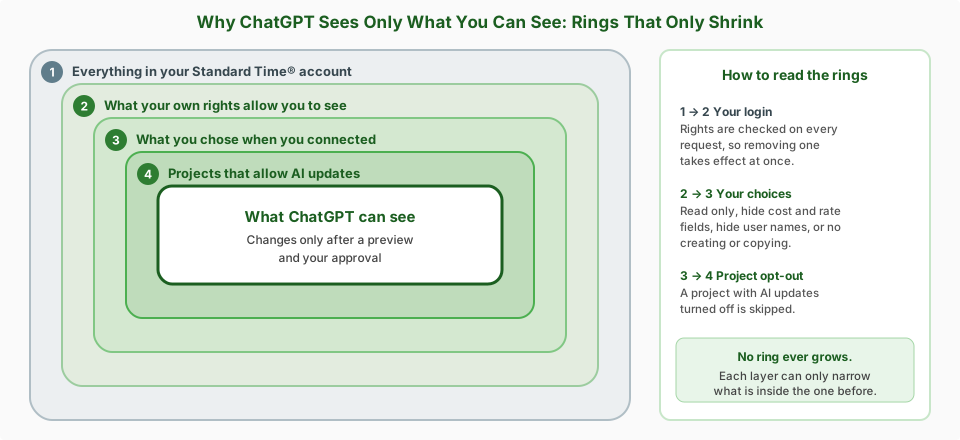
Several layers keep ChatGPT inside the lines. Each one can only narrow what it can reach. None of them widens it.
| Layer | What it controls |
|---|---|
| 1. Your own rights | The connection is you. If you may not view salary rates, or only see the projects you are assigned to, neither can ChatGPT. Rights are checked on every request, so removing a right takes effect at once. |
| 2. Exclusions you choose | Chosen when you connect. They hide cost and rate fields, hide user names, make the connection read-only, or turn off creating and copying records. |
| 3. Project-level opt-out | A project whose AI-updates setting is turned off cannot be changed by ChatGPT, whatever the connection allows. |
| 4. Your approval | Every change needs a preview and your approval, and ChatGPT's own permission setting can add another stop. |
| 5. Disconnecting | You can revoke the connection at any moment, and it loses access immediately. |
The exclusions
| Exclusion | Effect |
|---|---|
| Cost and rate fields | Client and salary costs and rates are withheld, even from a user whose rights allow them. |
| User names | ChatGPT sees stand-ins such as “User 1” instead of real names. |
| Database writes (Read only) | No changes of any kind. ChatGPT is never offered the tools that change data. |
| Database record creation | ChatGPT may edit existing tasks, but not create or copy tasks and projects. Excluding writes also excludes creation. |
Using a Key Instead (Other Tools)
ChatGPT on the web signs in with your Standard Time® login, as described above, so it does not need a key. Tools that run on your own computer, such as Claude Code and Cursor, can send a key instead. An administrator creates keys in the same MCP Server dialog. That process, including how to copy a key once, set an expiry, choose exclusions, and revoke it, is covered in Connect Claude Code or Cursor With a Key on the Claude guide.
Disconnecting and Revoking
You can cut off ChatGPT from either side, but one side is the one that counts.
| Where | How | Effect |
|---|---|---|
| In Standard Time® (recommended) | Tools › Integration › MCP Server. Under Connected apps, find the ChatGPT row and click Revoke. | Ends the connection on our side immediately. Any open, unapplied proposals are forgotten. |
| In ChatGPT | Settings › Plugins, open Standard Time, and click Uninstall, or use the “…” beside the connected account. | Removes the plugin from your ChatGPT account. Revoke in Standard Time® as well, because that is what actually shuts the door. |
A revoked connection stays in the list, dimmed, with the state Revoked, so you have a record of it. To connect again, repeat the setup steps. You get a fresh consent page, which is also your chance to choose different exclusions.
Troubleshooting
| What you see | Likely cause and fix |
|---|---|
| ChatGPT answers without using Standard Time, or says it has no tools for it | Name it in your question (“With Standard Time, …”), or click + and choose Standard Time. Then check Settings › Plugins to make sure the plugin is installed. |
| The sign-in page says the username or password is incorrect | Check both. Several wrong tries in a row lock sign-in for a while, so wait before trying again. |
| Sign-in is refused even with the right password | The account may lack the Access to AI right, or may not be an administrator (a requirement by default). Ask an administrator. |
| “That proposal is no longer available. Propose the change again.” | The proposal expired (30 minutes), you were disconnected, or the connection sat idle for a long time. Ask ChatGPT to propose the change again and review the new preview. |
| ChatGPT cannot answer a cost or rate question | Cost and rate fields are hidden on this connection (or your own rights do not allow them). To change the connection, revoke it and connect again without that exclusion. |
| ChatGPT shows “User 1” and “User 2” instead of names | User names are hidden on this connection. Reconnect without that exclusion if you want real names. |
| ChatGPT asks you to sign in again | The connection went unused for about 30 days, or it reached its roughly six-month limit. Connect again from the plugin page. |
| ChatGPT stops and asks permission on every lookup | The plugin's permission is set to Always ask. Change it to Allow read-only tools in Settings › Plugins. |
| ChatGPT skipped some rows | The project's AI-updates setting is turned off, or your rights do not allow that change. ChatGPT lists what it skipped and why. |
| ChatGPT is slow or reports a rate limit | Requests are limited to 120 per minute. Wait a moment and try again. |
Safety Built In, and Limits
What protects you
- It acts as you, with your rights. There is no separate permission system and no way to see more than you can.
- Rights are re-checked on every request. Remove a right, deactivate a user, or revoke a connection, and it takes effect on the very next request.
- Changes are two steps. A preview, then an apply that you approve. Even if text inside your own data (such as a task note) contained instructions, nothing is changed without that approved apply step.
- Everything travels over HTTPS. Your Standard Time® password is typed only into the Standard Time® sign-in page, never into ChatGPT.
- Sign-in is rate-limited. Repeated wrong passwords lock sign-in for a while, and all failed attempts look alike, so nobody can use them to guess which user names exist.
- There is a record. Applying and undoing changes are always logged, and an administrator can turn on more detailed activity logging for a connection.
Limits to know about
- ChatGPT can edit and create tasks and projects only. Time logs, expenses, invoices, and existing project settings are read-only to it.
- It never deletes or merges anything, so removing records is always done in Standard Time® itself.
- It is available for Standard Time® cloud accounts only.
- An AI assistant can misunderstand a request or make a mistake. That is why every change shows a preview first. Read it before you approve.
- ChatGPT is a separate service from OpenAI with its own account, plans, and menus. Those can change; the Standard Time® side described here stays the same. Standard Time® is not affiliated with OpenAI.
Quick Answers
Can I connect ChatGPT to my time tracking software?
Yes. If you use Standard Time® cloud, you can connect ChatGPT (chatgpt.com) to your account, then ask about your projects, tasks, and hours in plain English. It works the same way as the Claude connection.
Will ChatGPT change my data without asking?
No. Every change is shown as a preview first, and nothing is written until you approve it. After a change is applied, you can undo it for 30 minutes.
What can ChatGPT see?
Only what the signed-in person is allowed to see. ChatGPT acts as that person, with that person's rights, and you can also hide cost and rate fields and user names for a connection.
Who can set it up?
The person who connects needs the Access to AI right. By default, only an administrator can approve a ChatGPT sign-in.
Do I have to turn the plugin on in each chat?
Not necessarily. In testing, ChatGPT used Standard Time when the question began with “With Standard Time.” You can also click the plus button and choose Standard Time to attach it yourself.
Does it work with an on-premise install?
No. It is available for Standard Time® cloud accounts only.
- Smoke-Test Your ChatGPT Connection — a 10-minute checklist to prove it works
- Connect Claude Chat to Standard Time® (MCP Server) — the same doorway for Claude, plus keys for Claude Code and Cursor
- How to Use AI Chat — the AI assistant that lives inside Standard Time®
- AI Providers Integration — connect Standard Time® to an AI model with your own key
- OData & Power BI — dashboards and reporting across thousands of records
- Zapier — event-driven automation between Standard Time® and other apps
- Webhooks — a real-time event feed to your own systems
- Gantt Chart & Project Tasks — the tasks the assistant can read and change
- How to Set Up Users — rights, administrators, and who can see what
- Integrations
- FAQ: Integrations & Data