Scheduled Exports are designed to be configured by a system administrator or IT professional. Setting up a working export may require knowledge of your SQL database schema and column names, the Standard Time® StScheduler Windows service, and SQL query syntax for the Filter string and SQL source query fields. If you are unsure about any of these, contact your IT department or Scoutwest support before proceeding.
What Is a Scheduled Export?
A Scheduled Export is a saved configuration that automatically queries a Standard Time® data table, filters the results, and writes the output to a file, an email attachment, or a Google Sheet — unattended, on a recurring schedule. Once configured, exports run without any manual action as long as the Active flag is set to Yes.
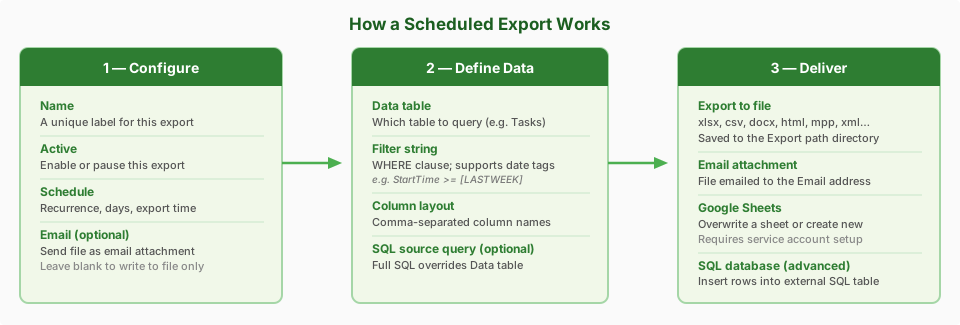
Scheduled Exports are managed in the Scheduled Exports grid (navigate to Tools > Scheduled Exports or open it from the toolbar). Each record in the grid stores a complete export definition: the schedule, the data query, and the destination. Exports are run by the StScheduler Windows service or by the running Standard Time® Windows edition at the configured time.
To view and edit all properties: click a row in the Scheduled Exports grid, then look at the Properties panel on the right side of the screen. Properties are grouped into the categories described in this reference.
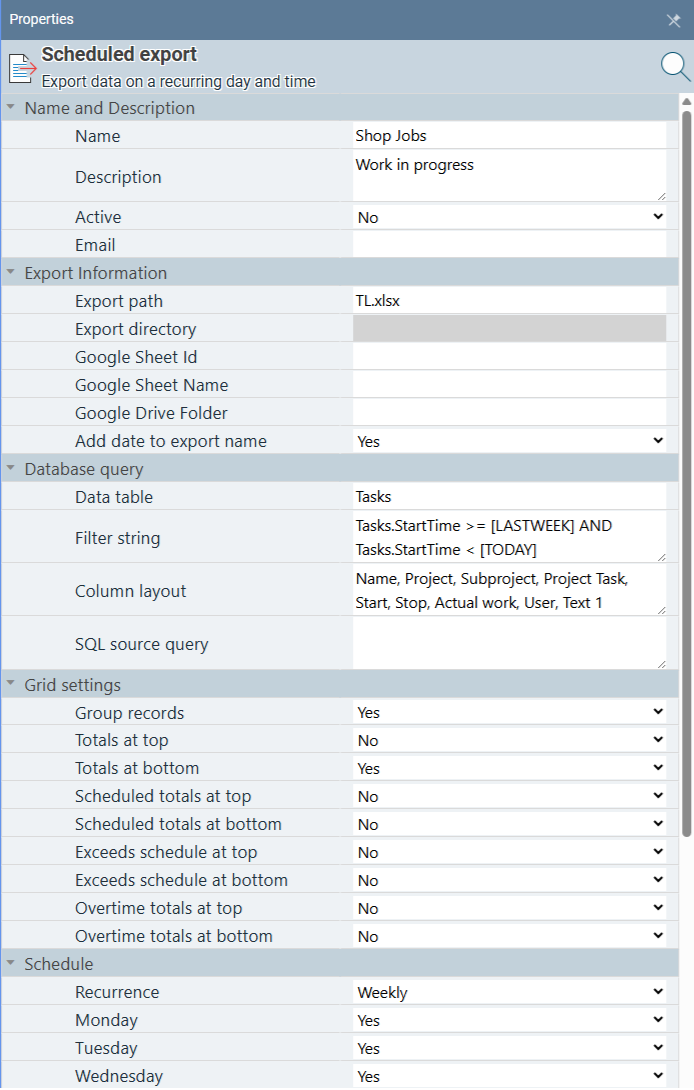
Name and Description
These properties identify the export and control whether it runs automatically.
| Property | Description |
|---|---|
| Name | A unique label for this export record. Displayed in the Scheduled Exports grid and in export log messages. Also used to reference this export by name in the Sequence names field of another export. Names must be unique across all scheduled exports. |
| Description | Optional free-text notes about the purpose or configuration of this export. Not included in the exported file — for administrator reference only. |
| Active | When set to Yes, the export runs automatically at the configured schedule. When set to No, the schedule is paused — the export will not run automatically, but it can still be triggered manually via right-click → Run Export Now. Use this to pause a seasonal export without deleting the configuration. |
| An email address to send the exported file to as an attachment after each run. If this field is set, the exported file is attached to an outgoing email and sent. Leave blank to skip the email step. Can be combined with Export path — the file is written to disk and emailed. The from address is taken from the logged-in user's email address or from the configured email account in Tools > Email Accounts. |
Export Information
These properties control where the export output is delivered — a local or network file path, a Google Sheets spreadsheet, or any combination.
| Property | Description |
|---|---|
| Export path | The file path where the export is saved, including the file name and extension. The file extension determines the export format — for example, C:\Exports\TimeLogs.xlsx creates an Excel file, C:\Exports\TimeLogs.csv creates a CSV. Supported extensions: xlsx, csv, docx, txt, html, iif, xml, mpp. Windows desktop edition: enter the full path including directory (e.g. C:\Exports\TimeLogs.xlsx); the destination directory must already exist before the export runs. Web edition: enter only a file name (e.g. TimeLogs.xlsx) — the server writes the file to its configured export directory. Enter only a file name if delivering by email or Google Sheets. |
| Export directory | Read-only. Displays the directory portion of Export path for quick reference. This field cannot be edited directly — change Export path to update the directory. |
| FTP connection | The name of an FTP connection record to use for automatic file delivery after each export run. Select an existing connection from the dropdown or leave blank to skip FTP upload. When an FTP connection is set and an Export path is also provided, Standard Time® writes the file locally first and then uploads it to the FTP server. When only an FTP connection is set (no export path), the file is built in memory and sent directly — nothing is written to disk. FTP connections are managed separately; see FTP Delivery below for setup instructions. |
| FTP remote path | The destination path on the FTP server where the file will be placed. For SFTP, use a full absolute path such as /exports/timelogs.csv or a path relative to the user's home directory such as exports/timelogs.csv. If this field is left blank, the file name from Export path is used as-is. If the path points to an existing directory on the server (SFTP only), the file name is appended automatically. The remote directory must already exist — Standard Time® will not create missing directories on the server. |
| Google Sheet Id | The ID of an existing Google Sheets spreadsheet to overwrite on each run. The sheet ID is the long string in the spreadsheet's URL: https://docs.google.com/spreadsheets/d/<ID>/edit. When a Sheet ID is provided, the contents of the target sheet are cleared and replaced with the new export data. Requires a service account configured in Tools > Google Integration. See the Google Sheets integration guide for setup steps. |
| Google Sheet Name | The tab name within the Google Sheets spreadsheet to write to. Defaults to Sheet1 if left blank. If the named tab does not exist, it is created automatically. |
| Google Drive Folder | The ID of a Google Drive folder. When set, a new spreadsheet is created inside this folder on every run rather than overwriting an existing sheet — useful when you want a dated archive of each export as a separate file. Obtain the folder ID from the Drive folder's URL. If both Google Sheet Id and Google Drive Folder are set, Google Sheet Id takes precedence. |
| Add date to export name | When set to Yes, the current date is appended to the export file name before the extension — for example, TimeLogs.xlsx becomes TimeLogs-6-5-2025.xlsx. This creates a date-stamped archive and prevents each run from overwriting the previous file. Set to No to overwrite the same file each run. |
FTP Delivery
Standard Time® can upload each export file to an FTP, FTPS, or SFTP server automatically after the export runs. FTP connections are stored as separate named records so one connection can be reused across multiple scheduled exports.
Opening FTP Connections
To create or manage FTP connections, right-click on any row in the Scheduled Exports grid and choose Admin > FTP connections from the context menu.
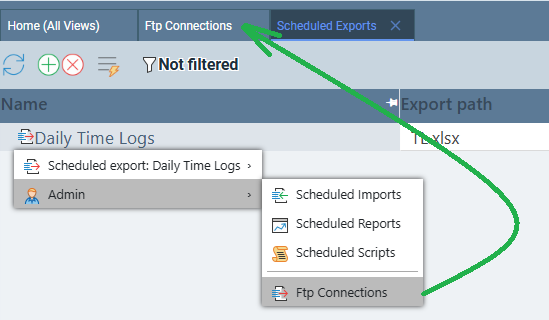
The FTP connections manager opens as a separate grid. Click New to create a connection record, enter the server details in the Properties panel, and save. Once saved, the connection name becomes available in the FTP connection dropdown on any Scheduled Export.
FTP Connection Properties
Each FTP connection record stores the credentials and transport settings for one server. Configure these properties in the Properties panel after selecting a connection record.
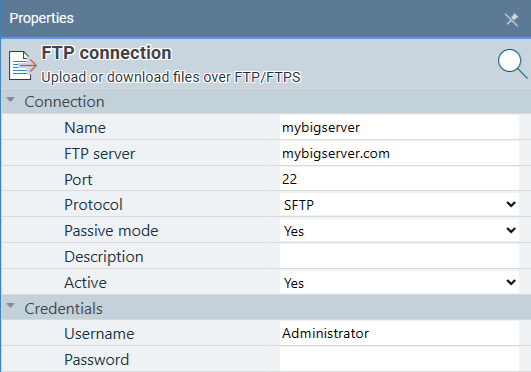
| Property | Description |
|---|---|
| Name | A unique label for this connection. This name appears in the FTP connection dropdown on Scheduled Export records — choose something descriptive, such as Production SFTP or Customer Portal FTP. |
| FTP server | The hostname or IP address of the FTP/SFTP server. For example: sftp.example.com or 192.168.1.50. Do not include a protocol prefix or trailing slash. |
| FTP port | The TCP port to connect on. Defaults to 22 (the standard SFTP port). Standard FTP uses port 21; FTPS typically uses port 21 or 990. Set this to match your server's configuration. |
| FTP protocol |
The transfer protocol:
|
| FTP username | The account name used to authenticate with the server. For SFTP this is the SSH username. For FTP/FTPS this is the FTP login name. |
| FTP password | The password for the FTP or SFTP account. Stored in the Standard Time® database. For security-sensitive environments, create a dedicated FTP user on the server with write access limited to the export destination directory only. |
| FTP passive mode | Applies to FTP and FTPS only (not SFTP). When Yes (default), the client opens the data connection rather than the server — required when the server is behind a NAT or firewall that blocks inbound connections. Set to No only if your network specifically requires active mode. Has no effect when the protocol is SFTP. |
Testing an FTP Connection
Before activating a scheduled export that uses FTP delivery, verify the connection works. Right-click the FTP connection record in the FTP connections grid and choose Test connection. Standard Time® attempts to connect to the server and authenticate — the result is shown in a message box and written to the connection's Last results field.
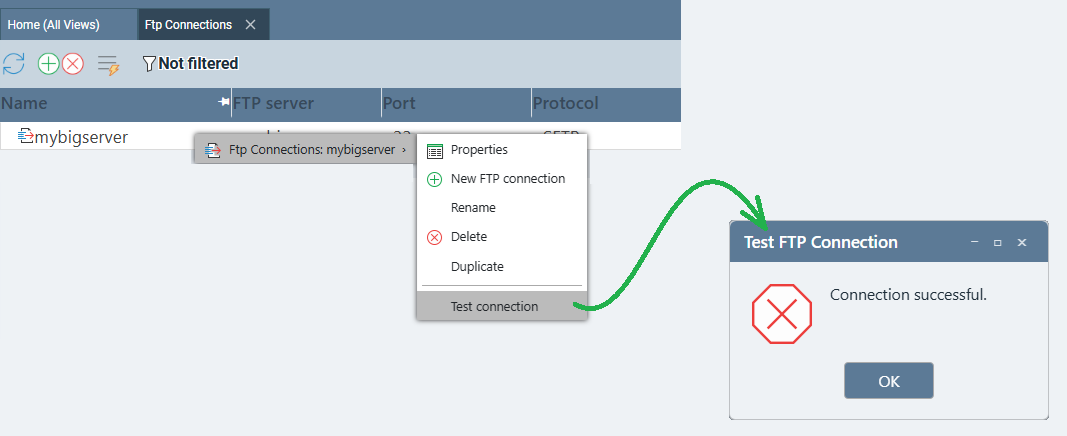
/exports/) and Standard Time® will append the file name automatically. Alternatively, set a full file path (e.g. /exports/timelogs.csv) to control the exact file name on the server. The remote directory must already exist — it will not be created automatically.
Database Query
The Filter string and SQL source query fields accept raw SQL passed directly to the database. Configuring these fields requires knowledge of the Standard Time® database schema, SQL syntax, and the exact column names used in the underlying tables. Incorrect queries can return empty results or unexpected data without showing an error. Have a database administrator review any SQL you enter here before activating the export.
These properties define which data is included in the export: which table to query, how to filter the rows, which columns to include, and optionally a full custom SQL statement.
| Property | Description |
|---|---|
| Data table | The name of the Standard Time® data table to query. Common values include Tasks (time logs), Projects, ProjectTasks (project tasks / Gantt rows), Users, Inventory, and Timesheet. The table name must match exactly as it appears in the Standard Time® database. If a SQL source query is provided, this field acts as a label only and does not affect the query. |
| Filter string |
A SQL WHERE clause that limits which rows are returned from the Data table. Write the condition directly — do not include the Tasks.StartTime >= [LASTWEEK] AND Tasks.StartTime < [THISWEEK] The filter string supports date tags — special placeholders enclosed in square brackets that are replaced with actual date values when the export runs. Date tags make the filter self-updating: a filter using IT note: Column names must match the exact database column names in the Standard Time® schema. To verify column names, open the relevant page (e.g. Time Logs), click any row, and check the Properties panel — the field labels there correspond to the column names you can use in the filter. |
| Column layout | A comma-separated list of column (property) names that controls which columns appear in the export file and their left-to-right order. For example: Name, Project, Start, Stop, Actual work, User, Text 1. Use the property display names exactly as they appear in the Standard Time® Properties panel for the relevant record type. If left blank, all available columns for the data table are exported in default order. |
| SQL source query |
Leave this blank in most cases. This field is optional and intended only for special situations where Data table and Filter string cannot express the needed query. When blank, the export uses Data table, Filter string, and Column layout as normal. When provided, this must be a complete SQL SELECT statement. It overrides Data table and Filter string entirely. Use it only for complex cases — joins across multiple tables, aggregations, computed columns, or data structures that cannot be expressed with a single table and a WHERE clause. IT note: The statement runs directly against the Standard Time® SQL Server or Access database. It must be a valid SELECT statement for your database engine. Test the query in a database management tool (e.g. SQL Server Management Studio or Microsoft Access) before saving it here. A syntax error will cause the export to fail and log an error message in the Export results field. |
Date Tags Reference
Use these tags in the Filter string field to build date-range conditions that update automatically on every run. Each tag is replaced with the corresponding SQL-formatted date value at the moment the export executes. No manual date maintenance is required.
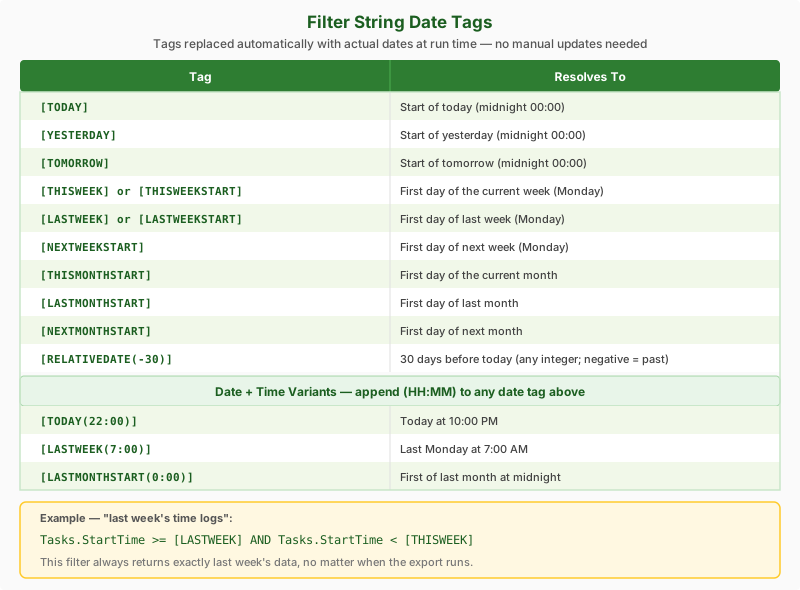
[THISWEEK], [LASTWEEK], and [NEXTWEEKSTART] resolve to Monday by default. The start day respects the Week starts on setting in Standard Time® user preferences.
Grid Settings
These properties control grouping and totals rows in the export file. They mirror the grouping and totals options available in Standard Time® grid views, so the exported file matches what you see on screen.
| Property | Description |
|---|---|
| Group records | When Yes, rows in the export are grouped the same way they would appear in the grouped grid view. Grouping adds a subtotal row for each group. Set to No for a flat ungrouped list of rows. |
| Totals at top | When Yes, a grand-total summary row is inserted before the data rows at the top of the export file. Useful when the reader needs to see the overall total immediately. |
| Totals at bottom | When Yes, a grand-total summary row is appended after the last data row. Standard spreadsheet convention — most useful for Time Logs exports showing total hours worked in the period. |
| Scheduled totals at top / bottom | Applies to Timesheet exports only. When Yes, adds a row showing the scheduled (planned) hours at the top or bottom of the file or each group. Enables comparison of scheduled vs. actual hours in the exported timesheet without opening Standard Time®. |
| Exceeds schedule at top / bottom | Applies to Timesheet exports only. When Yes, adds a row at the top or bottom showing the amount by which actual hours exceed the schedule. Used for over-budget analysis and variance reporting. |
| Overtime totals at top / bottom | Applies to Timesheet exports only. When Yes, adds an overtime total row at the top or bottom of the export. Helps payroll staff identify overtime hours in exported timesheet files without manual calculations. |
Schedule
These properties determine when the export runs automatically. The StScheduler service (or the running Standard Time® desktop edition) checks scheduled exports once per minute and triggers any export that matches the current day and time.
| Property | Description |
|---|---|
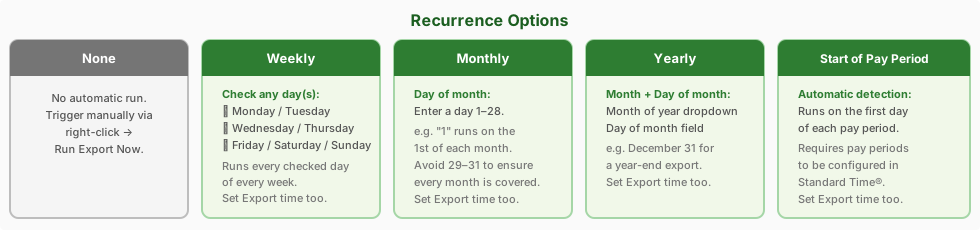
| Recurrence |
How often the export runs automatically. Options:
|
| Monday – Sunday | Visible when Recurrence is set to Weekly. Check each day on which the export should run. At least one day must be checked for the export to run automatically. Multiple days can be selected — for example, check Monday through Friday for a weekday-only daily export. |
| Month of year | Visible when Recurrence is set to Yearly. Select the month in which the annual export should run (January through December). |
| Day of month | Visible when Recurrence is set to Monthly or Yearly. Enter the calendar day (1–31) on which the export should run. It is recommended to use days 1–28 to ensure the export fires in every month, including February. |
| Export time | The time of day the export should run. The scheduler matches within a ±60-minute window of this time — an export set to 6:00 AM will run any time between 5:00 AM and 7:00 AM on a scheduled day, whichever check arrives first. Set this to a low-traffic period, typically early morning, to avoid impacting users during business hours. |
Sequence
A sequence lets one Scheduled Export record trigger a chain of other exports — one after the other — by listing their names. When Sequence names is populated, the record acts as an orchestrator rather than performing its own export.
| Property | Description |
|---|---|
| Sequence names | A comma-separated list of Scheduled Export names to run in order. For example: Weekly TimeLogs, Weekly Projects, Monthly Summary. Each name must exactly match the Name property of an existing Scheduled Export record (names are case-insensitive). When this field is populated, the record's own Data table, Filter string, Export path, and other query/destination properties are ignored — only the listed exports are executed in sequence. Leave blank for a normal single-export record. |
Running an Export Manually
You can trigger any scheduled export on demand without waiting for its next scheduled run. This is the fastest way to verify that your configuration is correct — right-click on any row in the Scheduled Exports grid and choose Run export now from the context menu.
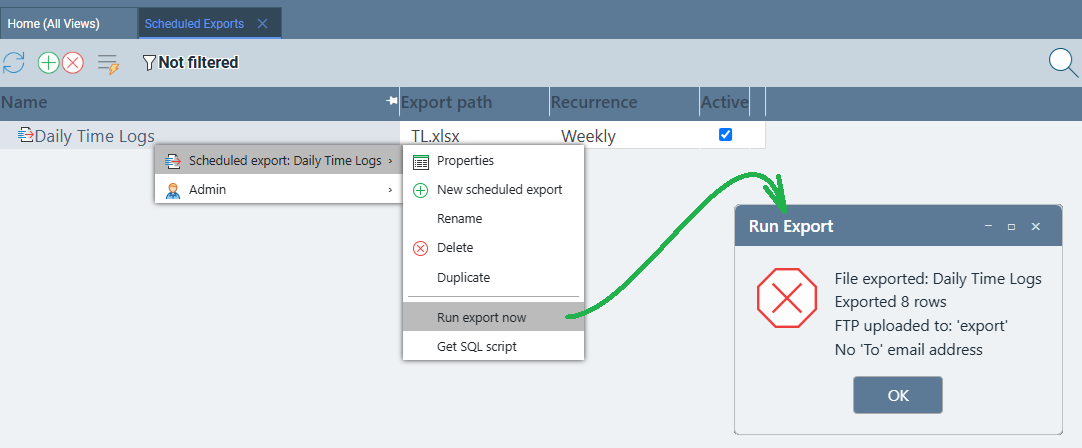
The export runs immediately and a popup message box displays the result — including the file path written, the number of rows exported, and any error that occurred. This lets you confirm that the data query, destination path, and delivery settings are all working before the first scheduled run.
Results and Testing
These read-only fields show the outcome of the most recent run. The Test date and Test results fields let you verify the schedule configuration before the export goes live — without actually running an export.
| Property | Description |
|---|---|
| Last export | The date and time of the most recent successful run. Updated automatically when the export completes. If this field is blank, the export has never run successfully. |
| Export results | A summary message from the most recent run — typically the file path written, number of rows exported, email send status, or any error that occurred. If the export failed, the error message appears here. Review this field after the first few runs to confirm the export is working as expected and reaching the correct destination. |
| Test date | Enter any date to check whether the configured schedule would trigger on that date. After entering a date, press Tab or click away — the Test results field updates immediately. Useful for verifying monthly or yearly schedules well before they are due to fire in production. |
| Test results | Read-only. Displays either "Will run on this date" or "Will not run on this date" based on the Test date entered above. This field evaluates the schedule logic only — it does not execute the export or write any output. |
- How to Set Up an FTP Connection — full setup guide: protocols, properties, testing, and troubleshooting
- Microsoft Office Integration — manual export to Excel, Word, CSV, and MS Project
- Google Sheets Integration — service account setup for automated Sheets exports
- FAQ: Import and Export
- FAQ: Integrations & Data