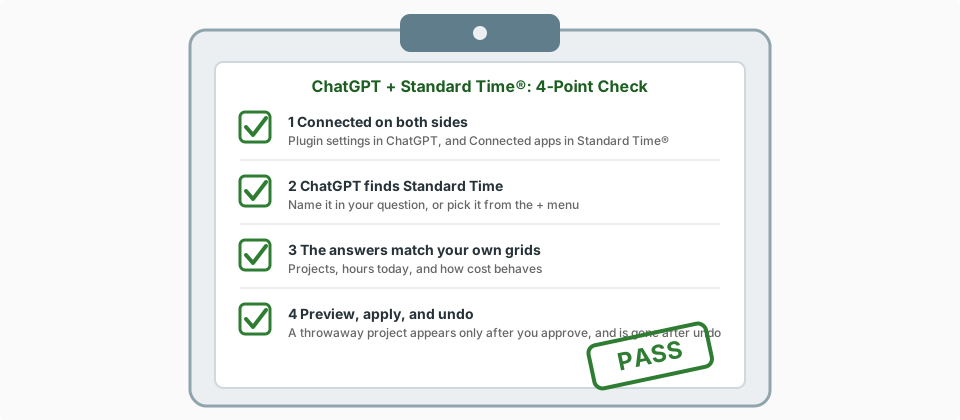
Before You Start
This page assumes ChatGPT is already connected. If it is not, follow the full ChatGPT guide first, then come back here. You will need:
| Item | Why |
|---|---|
| The sign-in you connected with | ChatGPT acts as that person, with that person's rights, so what it can see here is what that person can see. |
| A Standard Time® window open | Checks 3 and 4 compare ChatGPT's answers to your own Projects, Time Logs, and Project Tasks grids. |
| About 10 minutes | A proposal lasts 30 minutes and undo works for 30 minutes after applying, so there is plenty of room. |
Check 1 — Connected on Both Sides
2 minutesLook at both ends of the connection. Each should show an active link.
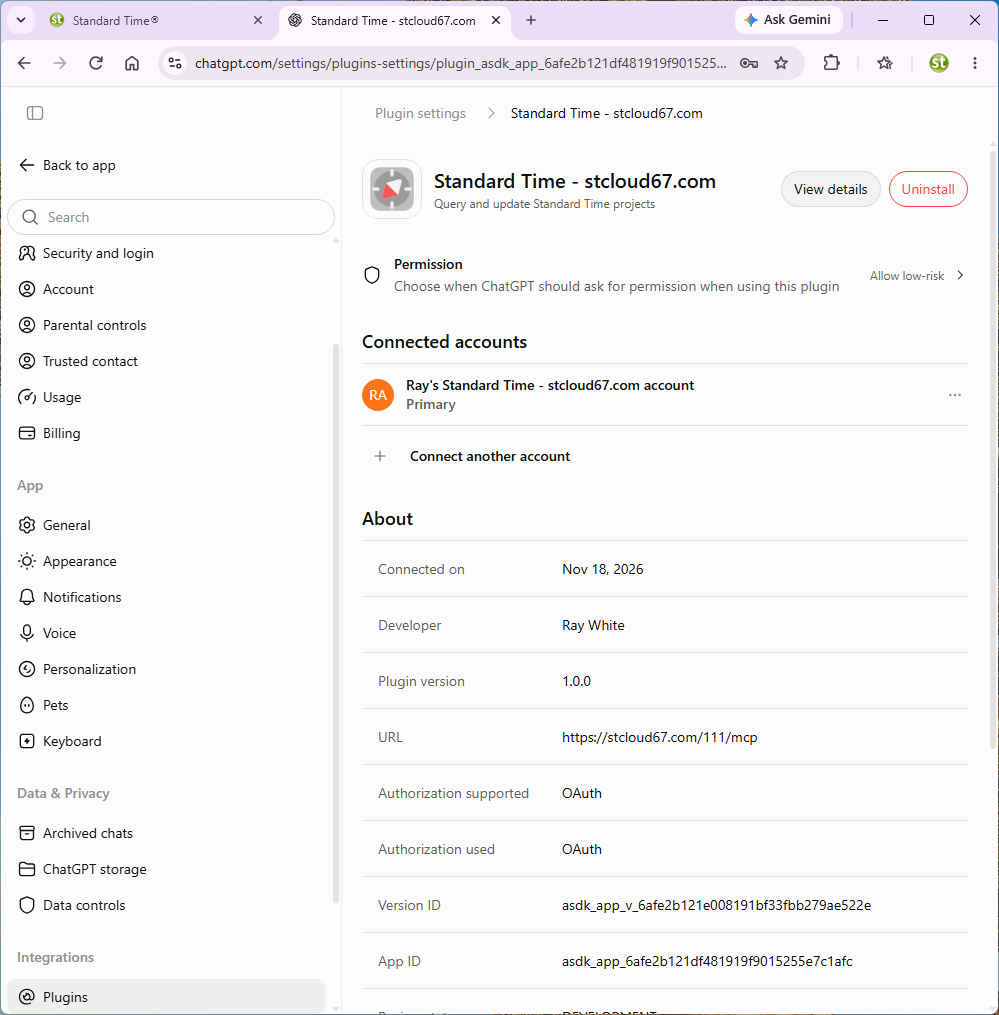
In ChatGPT: open Settings › Plugins and click the Standard Time plugin. Under Connected accounts you should see your account marked Primary.
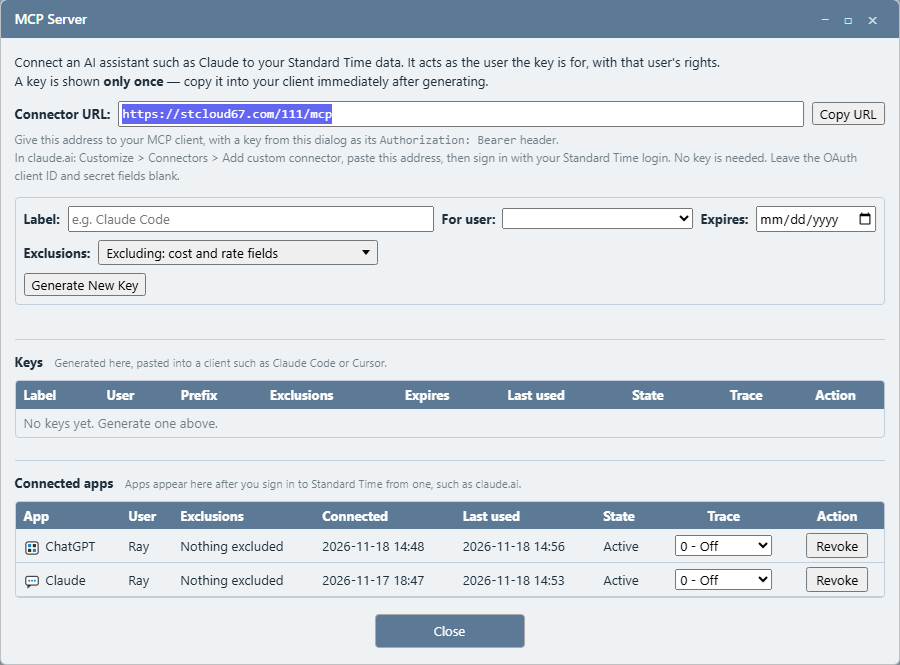
In Standard Time®: open Tools › Integration › MCP Server. Under Connected apps you should see one active ChatGPT row. Only an administrator can open this dialog.
Check 2 — ChatGPT Finds Standard Time
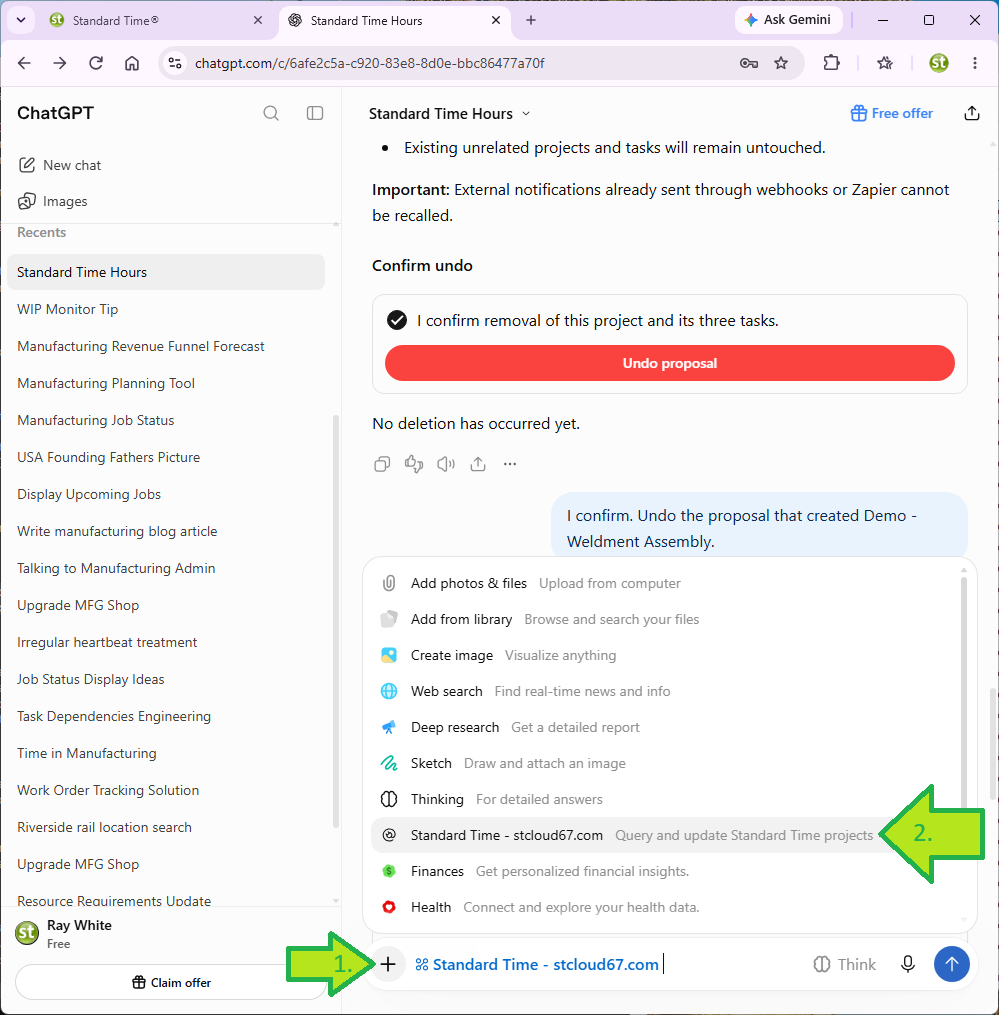
1 minuteUnlike some assistants, ChatGPT does not make you flip a switch for each chat. Start a new chat and begin your question with With Standard Time. To be certain, click the + button in the message box and choose Standard Time. A blue Standard Time chip appears in the box.
Check 3 — The Answers Match
4 minutesAsk three questions whose answers you can verify in minutes. The point is not clever questions; it is proving the numbers come from your live data.
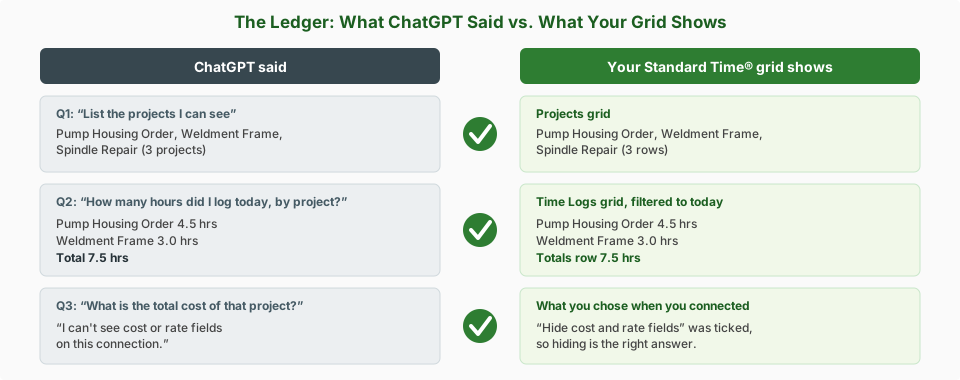
Question 1: what can it see?
Compare the list to your Projects grid. ChatGPT should show projects you recognize and none you are not allowed to see.
Question 2: hours you can check by eye
Open Time Logs, filter to today, and compare the per-project hours and the total at the top. If you have not logged time today, ask about this week instead.
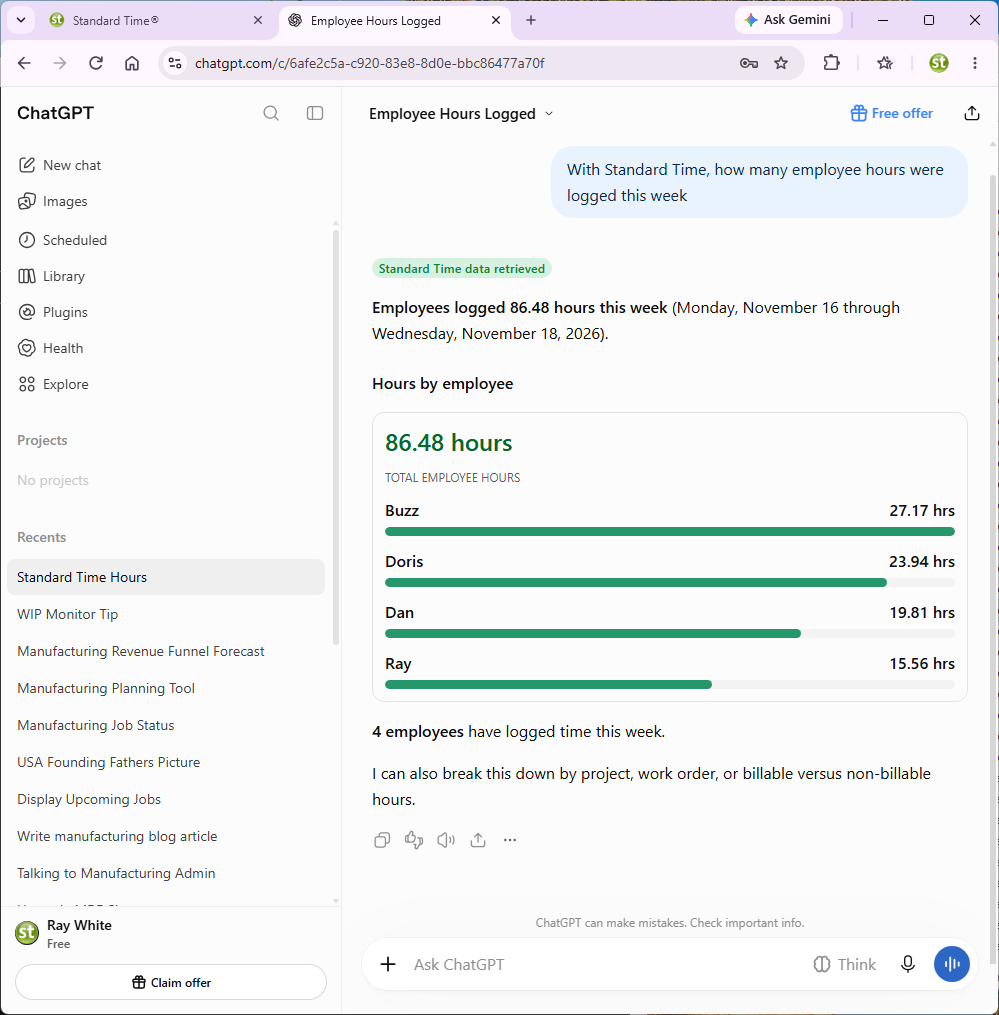
ChatGPT answers, labels the reply Standard Time data retrieved, and the totals come from Standard Time®.
Question 3: do your limits apply?
The answer depends on how you connected, and either result is a pass if it is what you intended:
- You get a cost figure: your sign-in is allowed to see costs and this connection does not hide them.
- ChatGPT says it cannot see cost or rate fields: they are hidden, either on this connection or by your own rights. That is the protection working.
Check 4 — Preview, Apply, and Undo a Change
3 minutesReading proves the connection. Writing proves the safety net. Use a throwaway project so you can test a real change and then take it back.
A. Ask for a proposal, and say not to apply it
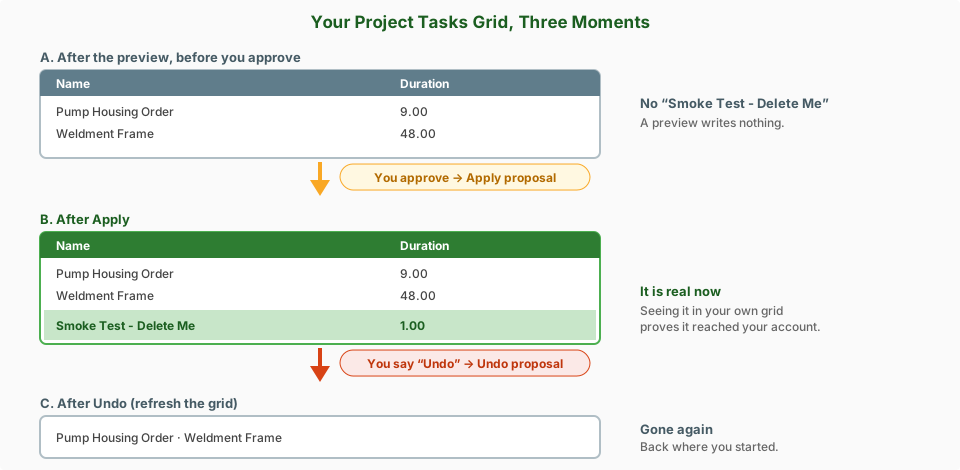
A proposal writes nothing; it only builds a preview.
B. Read the preview
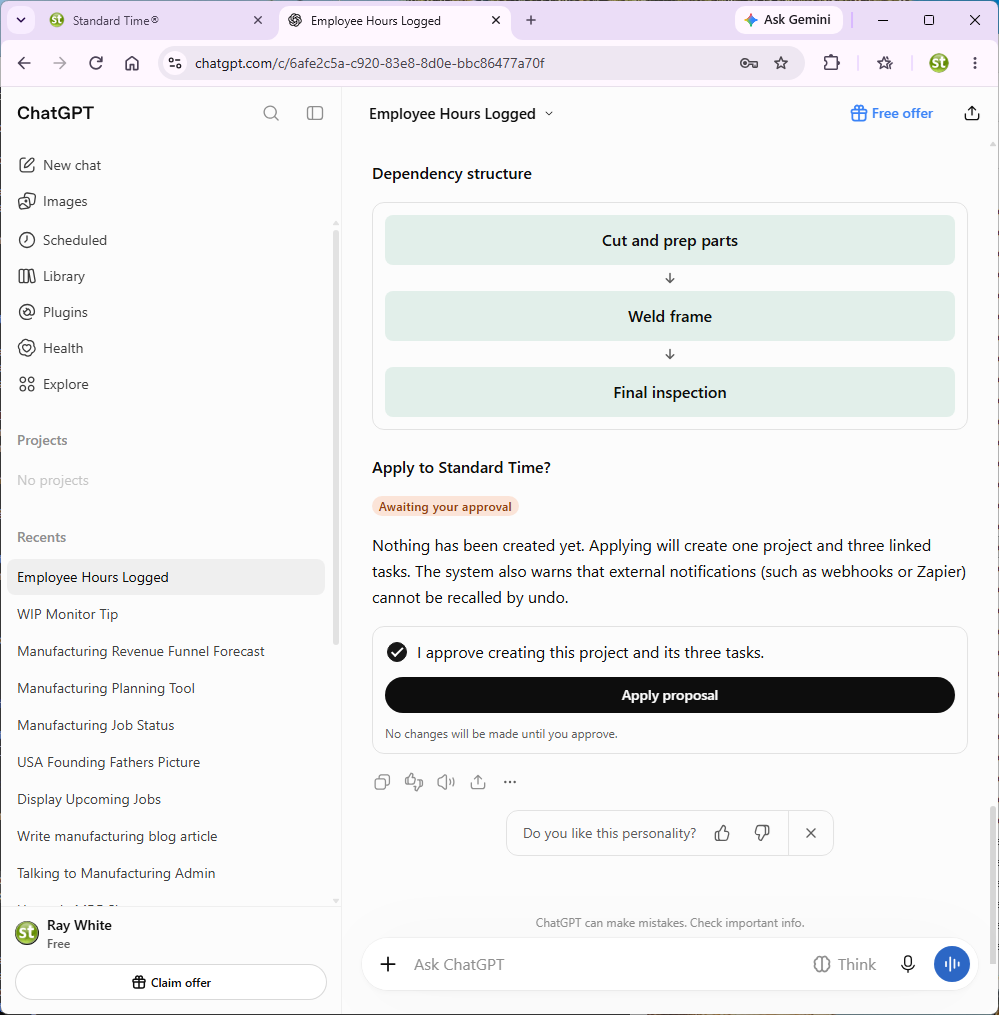
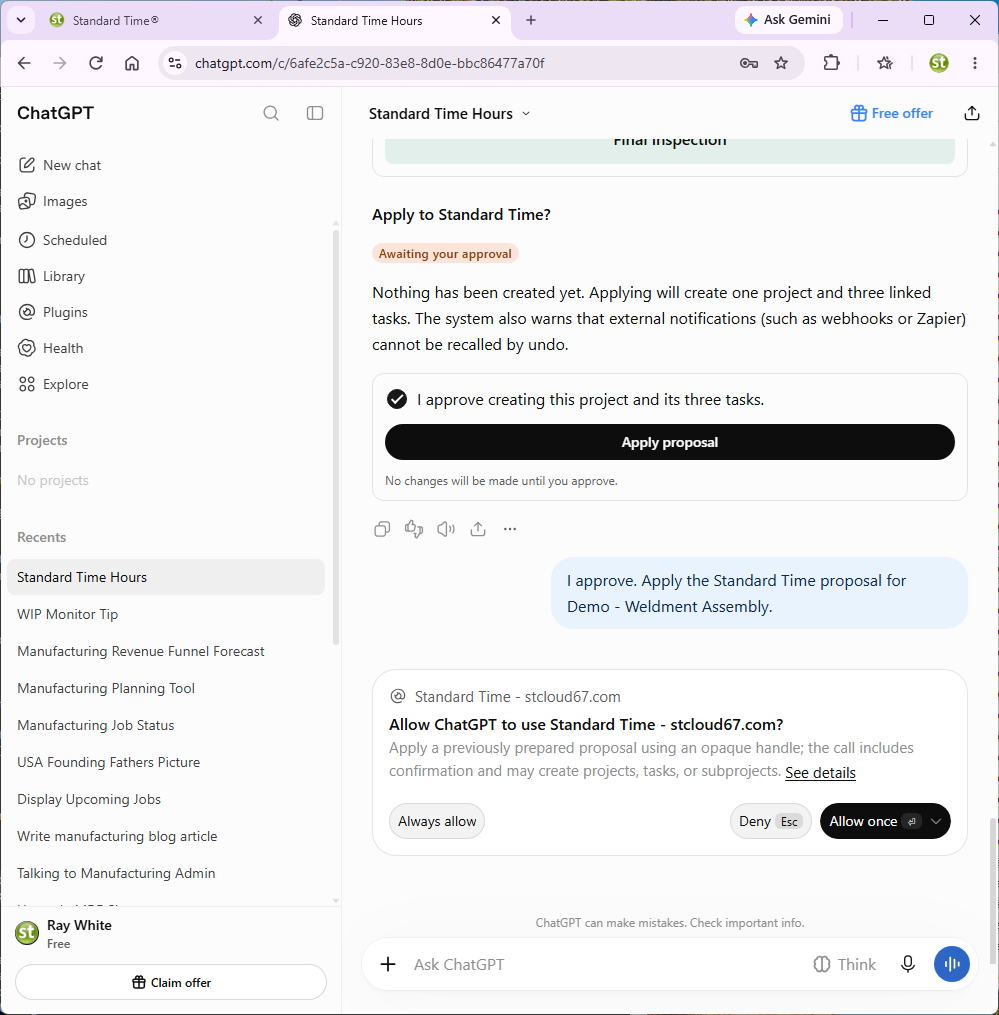
ChatGPT shows what would change, says Awaiting your approval, and says plainly that nothing has been created yet. Confirm it lists one new project and one new task, and that ChatGPT has not added anything you did not ask for.
C. Apply it, and approve the last gate
Tick the approval box and click Apply proposal, or tell ChatGPT “I approve. Apply it.” ChatGPT then asks for its own permission to use the tool that saves changes. Click Allow once.
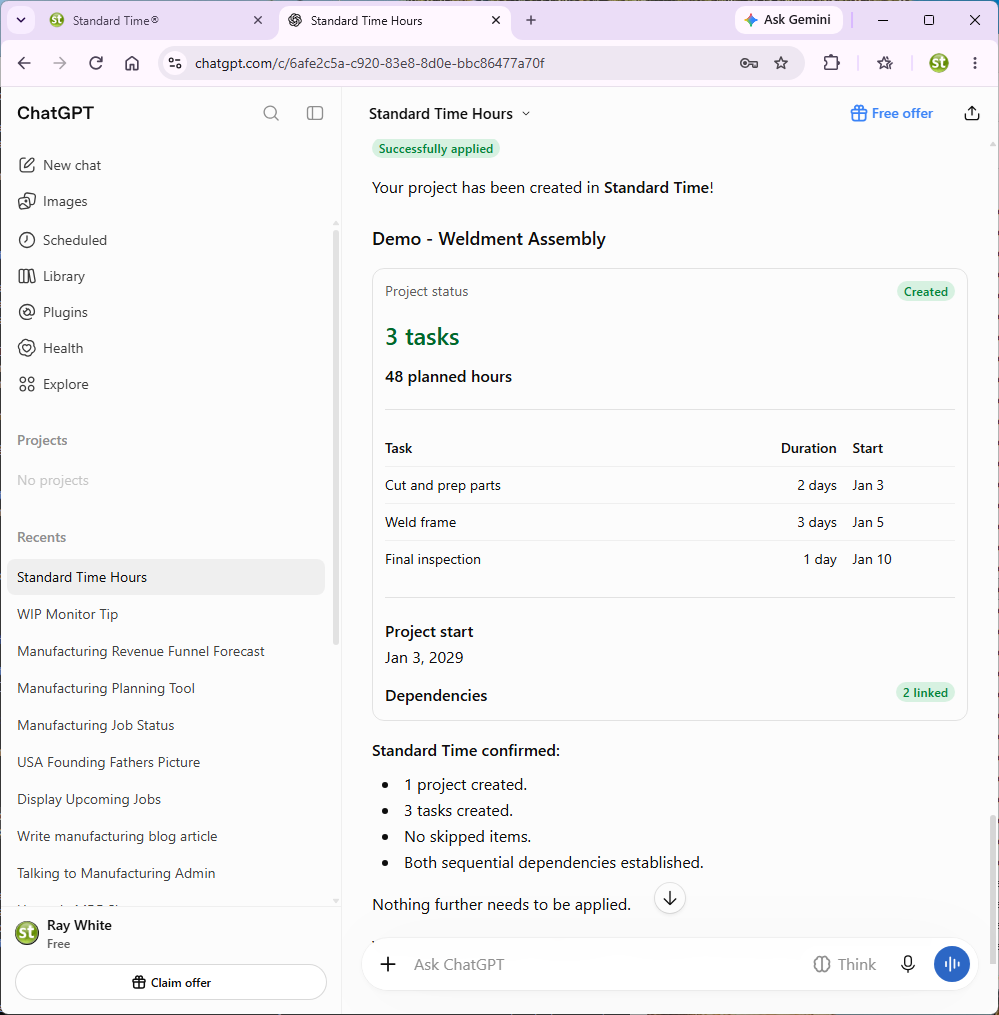
ChatGPT then reports Successfully applied.
D. Find it in Standard Time®
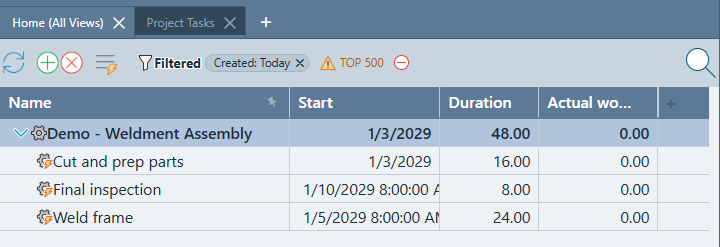
Open Project Tasks and look for Smoke Test - Delete Me. Seeing it in your own grid proves the change reached your account.
E. Undo it
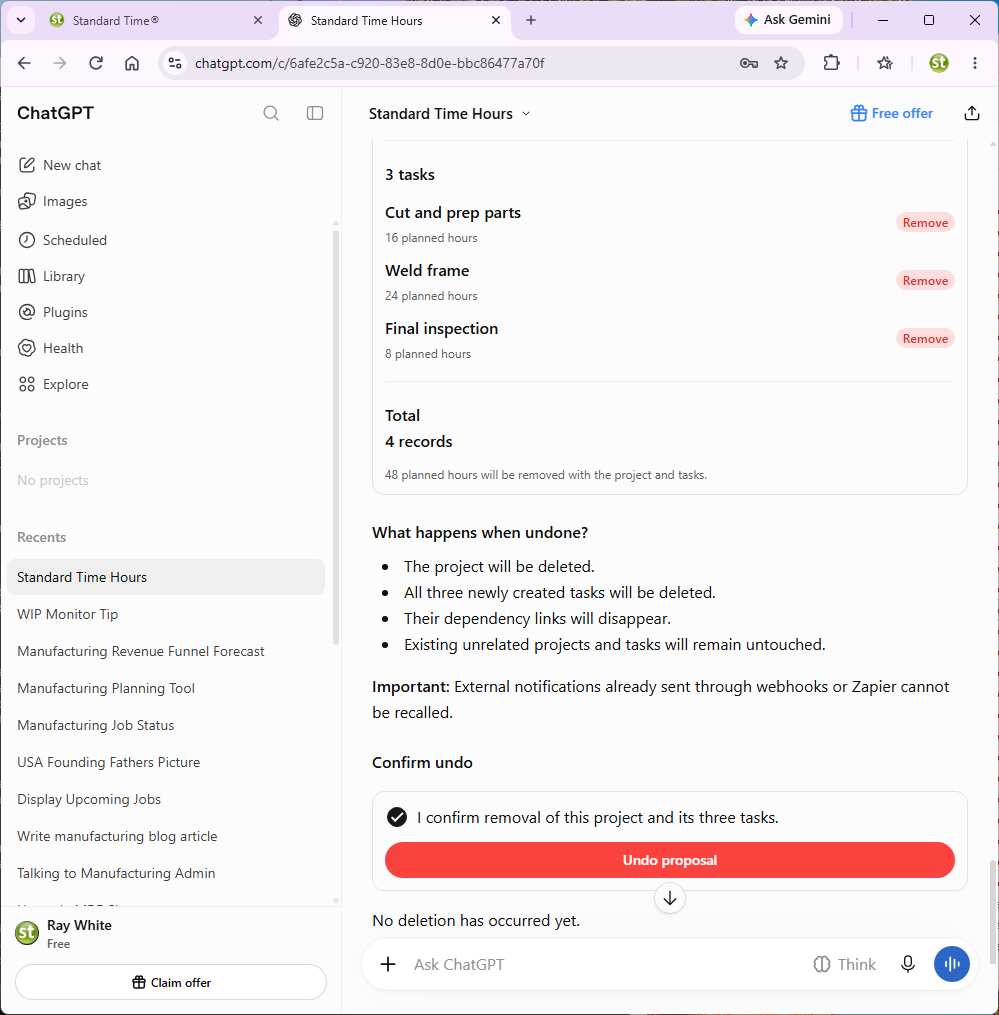
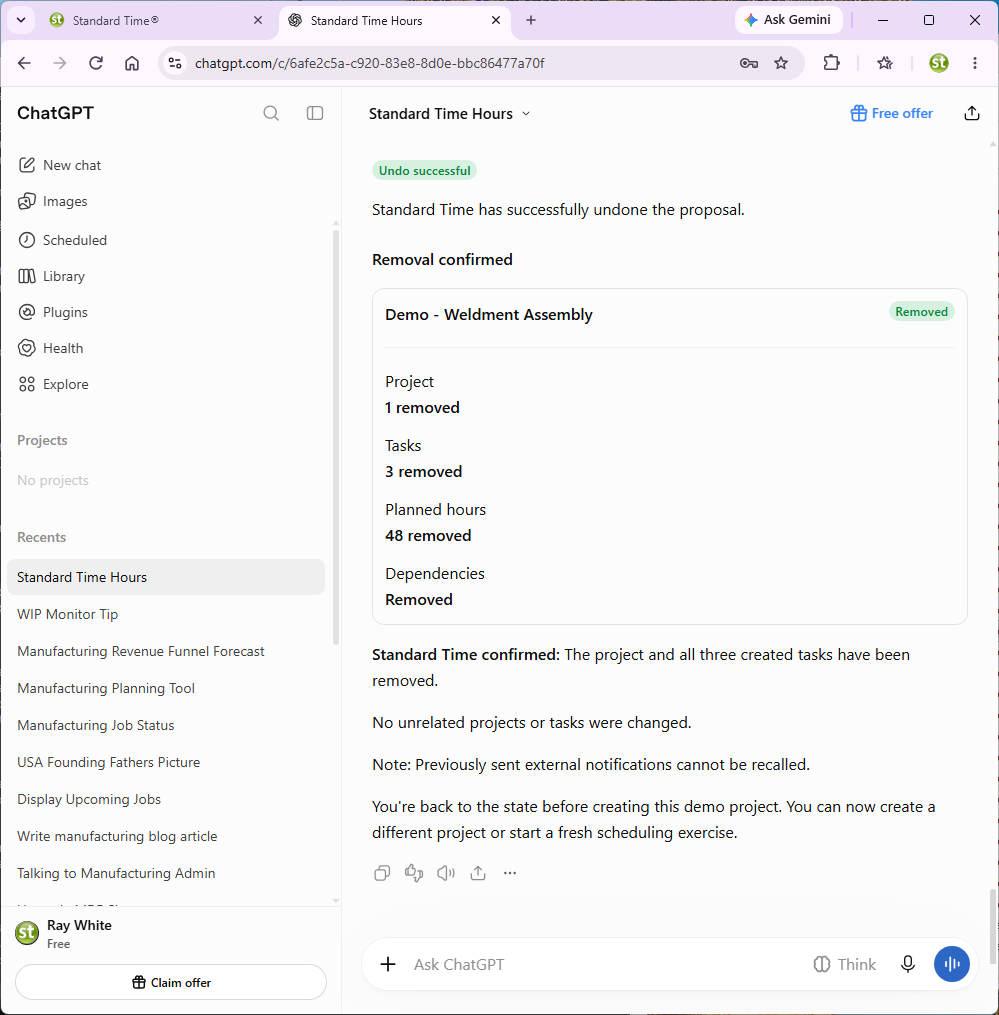
Say “Undo that last change.” ChatGPT lists what undoing would remove and waits. Tick the confirmation, click Undo proposal, and allow the permission prompt if one appears. Then refresh the grid. The throwaway project should be gone. Undo works for 30 minutes after applying.
What a Pass Looks Like
| Check | You should see |
|---|---|
| 1 — Connected | A connected account in ChatGPT's plugin settings, and an active ChatGPT row under Connected apps. |
| 2 — Finds Standard Time | A reply labeled “Standard Time data retrieved” when you name Standard Time or pick it from the + menu. |
| 3 — Answers match | The project list and hours match your grids, and cost and name visibility match what you chose. |
| 4 — Change and undo | A preview with nothing created, a project that appears after you approve, and is gone after undo. |
When all four pass, ChatGPT is ready for real work. If you were only testing and do not want to keep the connection, you can disconnect it at any time; see Disconnecting and Revoking.
If a Check Fails
| What you see | Likely cause and fix |
|---|---|
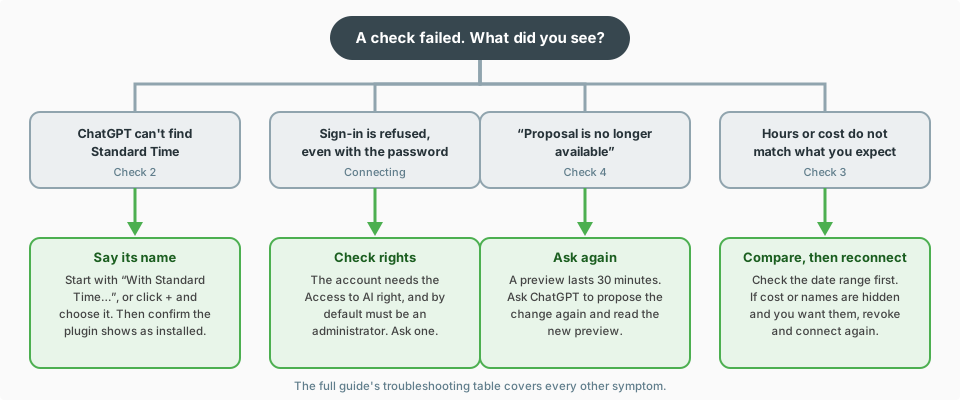
| ChatGPT answers without Standard Time data, or has no tools for it | Check 2: name Standard Time in your question or attach it from the + menu, and confirm the plugin is installed under Settings › Plugins. |
| Sign-in is refused, even with the right password | The account may lack the Access to AI right, or may not be an administrator (a requirement by default). Ask an administrator. |
| “That proposal is no longer available.” | The proposal expired after 30 minutes, or you were disconnected. Ask ChatGPT to propose again and review the new preview. |
| Hours do not match your grid | Compare the date range first. Then check whether the connection or your rights hide anything. |
| ChatGPT asks you to sign in again | The connection went unused for about 30 days or reached its roughly six-month limit. Connect again from the plugin page. |
| ChatGPT stops and asks permission on every lookup | The plugin's permission is set to Always ask. Change it to Allow read-only tools in Settings › Plugins. |
Every symptom, with fuller explanations, is in the troubleshooting table of the full guide.
Next Steps
ChatGPT is confirmed. From here you can ask real questions, tighten what the assistant can see, or verify another integration the same way.