
Barcode Scanning — Frequently Asked Questions
These questions and answers come directly from customers setting up barcode scanning for the first time. If you do not find your answer here, contact our support team.
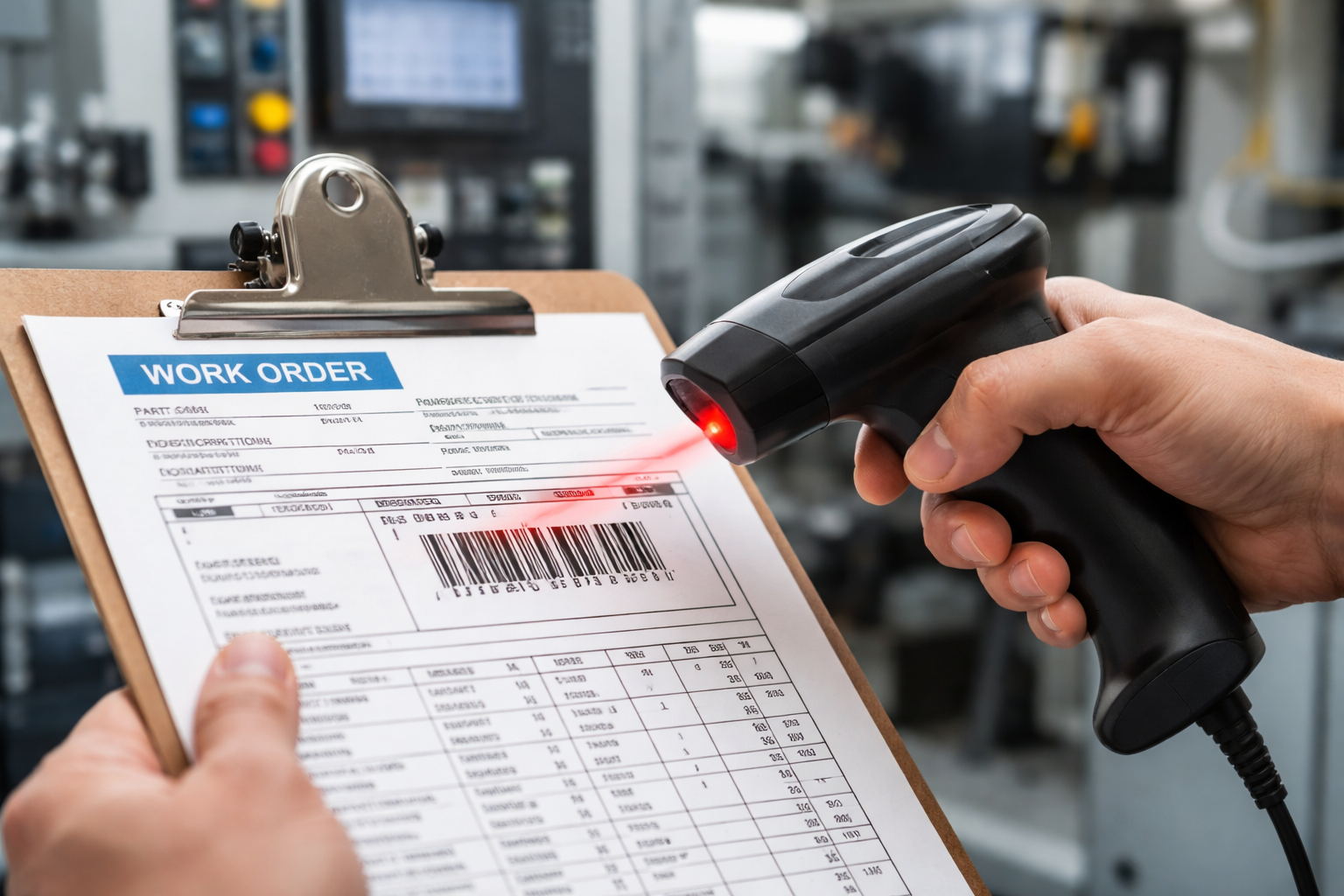
Labels & Printing
How do I print barcode labels?
Use any word processor or spreadsheet application with a barcode font installed to create printable labels. The recommended free font is IDAutomationHC39M_FREE.otf, downloadable from fontpalace.com/font-details/idautomationhc39m-otf/.
Is there a barcode font to download?
Yes. Download IDAutomationHC39M_FREE.otf from fontpalace.com. Install it like any other font, then apply it in Word or Excel to generate Code 39 barcodes from plain text.
Why do barcode labels use an asterisk at the beginning and end?
Asterisks mark where the barcode physically begins and ends — they function like bookends. Scanners do not transmit the asterisk characters themselves, only the text between them. This is standard Code 39 barcode encoding.
Scanners & Hardware
How do I connect barcode scanners to my PC?
Most scanners connect via USB port. Wireless models include a small USB receiver dongle. Once plugged in, the scanner functions like a keyboard — no special drivers required for most models.
Can I connect multiple scanners to one PC?
Multiple scanners may compete for keyboard input on a single PC. Single scanners per workstation are recommended for reliable operation. Low-cost tablets provide an affordable per-employee alternative.
What barcode scanners work with this?
Nearly all USB-connected scanners work via standard keyboard emulation. Red-line laser scanners and QR scanners both function identically. For beginners, inexpensive wired scanners ($20–$30 from Amazon) provide an affordable entry point. Ruggedized retail-grade scanners offer greater durability for long-term shop floor deployment.
Do you recommend a certain scanner?
For beginners, any inexpensive wired scanner from Amazon ($20–$30) is a great starting point. For high-volume, long-term shop floor use, ruggedized retail-grade scanners provide better durability. Both work the same way in Standard Time®.
Do I need a "wired scanner" or wireless?
Both work effectively. Wired scanners provide constant power and are always ready — no batteries to manage. Wireless models offer mobility and are great for large production areas, but require battery management.
Can I use a tablet for a barcode workstation?
Yes. Tablets eliminate the need for a full keyboard and mouse at each scan station. Consider mounting them in protective cases and adding screen protectors for long-term shop floor durability.
Can I scan with my mobile phone?
Yes, though low-cost tablets are generally more economical than using employee smartphones on the production floor. Tablets are also easier to mount and manage in a shop floor environment.
Can I connect workstations using Wi-Fi?
Yes, Wi-Fi is supported. However, hardwired Ethernet connections offer greater reliability on the shop floor. If running tablets, consider USB Ethernet adapters to enable wired connections.
Can I use QR Codes?
Yes. QR scanners function identically to laser scanners in Standard Time®. QR codes can carry significantly more information in a smaller space — including JSON-structured data with multiple fields in one scan.
Timers & Time Tracking
What barcode scans are needed to start a timer?
Typically: scan your username, then scan the project/job name, then scan the task name. The exact sequence may vary depending on your configuration. If task scanning is not required, just username + project starts the timer.
What stops a timer?
Scan your username, then scan
STOP. The active timer halts and the time log record is finalized in the database.My timers start immediately after scanning a project — why?
Project tasks may not be required in your current configuration. To require task scanning before a timer starts: File > Users and Organization > User Rights > uncheck "Can log time with no project task selected."
Can you have multiple timers running at the same time?
Each user normally operates one active timer. Switching jobs requires stopping the current timer before starting a new one. Advanced ADDTIMER/ENDTIMER scan commands enable parallel timer scenarios.
Can I start a timer on one tablet and then stop it on another?
Yes. Because all data is stored in a central SQL database, any connected device can start or stop any timer for any user — as long as the correct scan sequence is performed.
Users & Licenses
Can multiple employees work on the same job?
Yes, with no restrictions on the number of users per job. Multiple employees can each log time to the same work order simultaneously.
Can multiple employees work on the same task?
Yes. Multiple users can scan identical jobs and tasks at the same time. Each creates their own independent time log record.
How do I locate and change the name I scan?
Your logged-in username appears in the upper-right corner of the application. Access File > Users and Organization to view and rename users across the system.
Can I add new employees that can scan?
Yes, via File > Users and Organization. Note that each employee who scans requires their own license — licenses are per-user, not per device.
Do I need a license for each workstation, or for each user?
Licenses are per-user, regardless of how many workstations or scanners are deployed. Administrators and employees cost equally per license.
If I had ten employees sharing one scanner, how many licenses would I need?
Ten licenses — one per person who uses the software, not per device. Even if all ten share a single scanner, each needs their own license.
Can I share a scanning workstation with all employees?
Yes. A single shared scan station works well in smaller operations. For larger shops, dedicated low-cost tablets per employee eliminate wait times at the scanner.
How can I require users to scan project tasks?
Navigate to: Users > Home (All Views) > right-click first item > User Rights > uncheck "Can log time with no project task selected." This forces employees to scan a task before a timer will start.
Work Orders & Projects
How do I create a new work order?
Use File > Project Wizard to create a new work order step by step. Existing work orders can be duplicated via Tools > Projects.
Can I duplicate an existing work order?
Yes. Go to File > Projects > right-click an existing project > Duplicate. This creates a complete copy including all tasks — ready for modification and scanning.
Reporting & Data
Can I run reports of my barcode scans?
Yes. Time Log reports display all barcode scan results — hours worked, task allocation, job cost, and related metrics. Reports can be scheduled, exported, and emailed automatically.
Are barcode scans available for reports immediately as they occur?
Yes — upon timer completion. Reports display finalized time logs with both start and stop timestamps as soon as the STOP scan is processed.
Where does the information go after scanning?
Scan data flows from the workstation or tablet to a central SQL database via your LAN or Wi-Fi network. All connected machines can access this data immediately.
Can I scan offline and upload later?
No. Offline scanning lacks the real-time visual feedback that confirms each scan is accepted. Devices must maintain a server connection during scanning to ensure data integrity.
Infrastructure & Hosting
Do I need a server?
It is optional. Self-hosting requires dedicated server hardware. Cloud hosting is available through Scoutwest — no server hardware required on your end.
Is this program hosted in the cloud or on my own server?
Your choice. Standard Time® supports on-premise self-hosting for full control, or cloud hosting for simplified management — each with different pricing models. Contact us to discuss which is right for your operation.
What Else Can You Do?
Can I scan anything other than work orders?
Yes. Scannable items include projects, tasks, production phases, custom status codes, inventory items and BOMs, expenses, automated scripts, tools, and any custom organizational data you define.
Is barcode scanning the only thing this program does?
No. Standard Time® is a full manufacturing resource planner (MRP) with project management, Gantt charts, resource allocation, PTO tracking, QuickBooks integration, customer invoicing, AI-assisted scheduling, and much more. Barcode scanning is just one powerful component.